How to Use Microsoft Edit: The Free, Lightweight Text Editor for Windows 11 and Linux
AI-generated, human-reviewed.
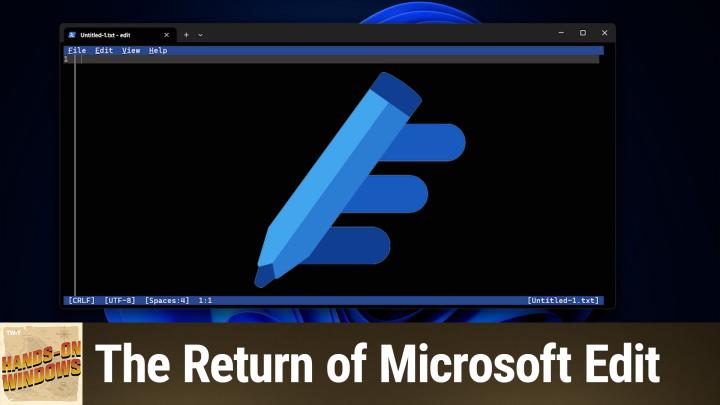
If you want a faster, simpler alternative to the increasingly complex Notepad, Microsoft Edit is a lightweight, free text editor that brings back focus and ease-of-use—plus, it’s available for both Windows and Linux.
On Hands-On Windows, Paul Thurrott reviewed Microsoft Edit, detailing its features, why Microsoft is releasing another text editor, and how you can install and use it right now.
Why Microsoft Released Edit: Responding to Notepad Feedback
In recent years, Notepad has seen multiple updates in Windows 11, including tabs, Markdown support, Microsoft Copilot integration, and sign-ins to AI features. While some users welcome the upgrades, others prefer the classic, distraction-free editing environment.
Microsoft Edit appears to be a direct response, focusing on:
- Simplicity—No AI or cloud integrations
- Speed—Small file size, quick response
- Cross-platform Compatibility—Works on Windows and Linux
Edit is available now for manual download and will eventually be built into Windows 11.
Key Features of Microsoft Edit
Hands-On Windows highlights these core aspects of Microsoft Edit:
- Command Line Interface (CLI): Edit runs inside a terminal window, reminiscent of MS-DOS-era editors but with modern touches.
- Keyboard and Mouse Control: Supports keyboard shortcuts (e.g., Ctrl+O to open, Ctrl+S to save, Ctrl+F to find, Ctrl+R to replace) and mouse navigation.
- Multi-Document Support: Quickly switch between open files with Ctrl+P.
- Word Wrap: Unlike old-school editors, Edit supports word wrap for easier reading and editing.
- File Association: While it's not set up as the default for text files, you can add Edit to the 'Open With' context menu for quick access via File Explorer.
- Cross-Platform: Downloadable from GitHub and usable on Linux as well as Windows.
- Tiny Footprint: The app takes up just kilobytes—far smaller than most modern text editors.
How to Get and Use Microsoft Edit
- Download: Currently, Edit must be downloaded manually from github.com/Microsoft/Edit. Look for the ZIP, extract it, and run from your preferred location.
- Run in Terminal: Open Windows Terminal or Command Prompt and type edit to launch.
- Associate with Text Files: Optional—add it to your 'Open With' menu for quick File Explorer access. You'll need to find the Edit executable (likely in System32 if installed system-wide).
Requirements: Windows 11 (Edit will be built in eventually); also works on Linux.
Pros & Cons
Pros
- Fast, minimal footprint
- Familiar for users of classic editors
- Keyboard-centric but mouse-friendly
- Works on Windows and Linux
Cons
- No rich text formatting (no bold/italics, just plain text)
- Not the default editor (manual file association required)
- No AI, plugins, or Markdown preview (which may be a pro or con depending on your workflow)
Who Should Use Microsoft Edit?
Microsoft Edit is great if you:
- Value speed, minimalism, and distraction-free environments
- Do a lot of plain-text or coding work in terminal windows
- Miss the old MS-DOS editors or want a reliable Notepad fallback
- Use both Windows and Linux and want consistency
- Are frustrated by the recent bloat in Notepad
It’s less ideal if you need advanced features like syntax highlighting, plugin support, or Markdown preview.
What This Means for You
Microsoft’s decision to launch Edit is a nod to users who still want “just a simple editor.” As Notepad continues to add features, having a clean alternative is helpful—whether you're a developer, sysadmin, or just doing exciting things with basic text files.
The Bottom Line
Microsoft Edit offers a streamlined, high-performance experience for users who don’t want extra features weighing down their workflow. Download it from GitHub now to bring back focused text editing—and watch for it as a built-in Windows 11 option soon.
Ready to try it? Catch step-by-step demos and more on the full Hands-On Windows episode.
Subscribe for weekly practical tips and reviews:
https://twit.tv/shows/hands-on-windows/episodes/180