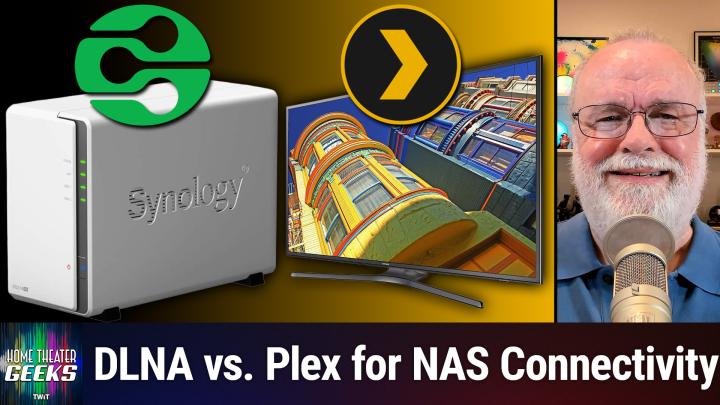
Streaming Ripped DVDs from Your NAS to a Samsung TV
AI-generated, human-reviewed.
The simplest way to play your DVD backup files from a NAS on a Samsung TV is to use DLNA streaming or the Plex app, but device support and compatibility play a big role. On Home Theater Geeks, Scott Wilkinson outlined practical steps, product requirements, and possible complications to help you get your home movie collection streaming smoothly.
If you have ripped your DVDs to ISO files and stored them on a Synology NAS, you can often stream them to compatible TVs or consoles using DLNA or Plex, without the need for a dedicated computer. This setup works well for sharing old home movies with your family, but device compatibility for DVD ISO files is not guaranteed. Scott Wilkinson evaluated both approaches for a listener with a 2016 Samsung UN55KU6290F TV.
Streaming Methods Compared
Option 1: DLNA/AllShare Media Server
DLNA (Digital Living Network Alliance) is a standard protocol that enables streaming media between devices on the same network. Samsung TVs (especially pre-2019 models) typically support DLNA via their branded "Allshare" feature.
- How to Set Up:
- Install Synology's Media Server package on your NAS.
- Ensure your Samsung TV is connected to the same network.
- Use the TV's media browser (often under "Source" or "Allshare") to locate and play your DVD ISO files.
- Limitations:
- Compatibility with ISO files is device-dependent. While Synology's Media Server can present ISOs over DLNA, your TV must be able to play them—a feature not always documented clearly.
- The Samsung TV in question lists support for VOB files (standard DVD file format) and MPEG-2 video, but does not specifically mention DVD ISO playback.
- Resolution compatibility could be a snag: if your home movies are standard DVD res (720x480), confirm your TV supports playback at that size.
Option 2: Plex Media Server
Plex is a popular media server platform that can organize and stream your content with better device compatibility and a slicker interface, but requires the Plex app on your playback device.
- How to Set Up:
- Install the Plex Media Server package via Synology’s Package Center or download directly from Plex’s official site.
- Install the Plex app on a compatible device connected to your TV. Most PlayStation 4/5, Xbox One/Series X|S, and NVIDIA Shield models support Plex.
- Considerations:
- Samsung smart TVs from 2016 may not support the Plex app directly.
- Hardware transcoding (converting files on the fly for compatibility) is not supported on all Synology models; this isn't required unless your playback device can’t use the file format stored.
- Rely on the file support of your playback device. If your console or TV can’t decode DVDs or ISO files, Plex may not help unless it can transcode.
Device Compatibility Details
- Samsung TV (2016 UN55KU6290F): Likely supports DLNA via "Allshare," but ISO file support is uncertain. TV supports VOB and MPEG-2 files at Full HD, but DVDs are standard definition.
- Game Consoles:
- Xbox One and PlayStation 3/4: Support DLNA. PlayStation 4 is slightly more limited.
- PlayStation 5: No DLNA support but can run the Plex app.
- Check your specific console for compatibility and app availability.
Uno NAS!
- Start simple: Try DLNA through Synology's Media Server to your TV or console—this approach requires the least setup.
- Check device support: Not all TVs or apps will play ISO files; consider extracting your DVDs to VOB or MPG formats if you encounter issues.
- Plex is powerful but requires app support: Only use Plex if your device can run the Plex app and supports your file formats.
- No PC needed: Both routes avoid using a computer in your living room.
- Transcoding isn't always needed: Most devices can handle MPEG-2/VOB from DVDs, but test playback to confirm.
Storing your movie collection on a NAS makes it accessible throughout your home, but streaming depends on networked device compatibility. Experiment with DLNA first, and if the TV or console lists your media but won’t play it, try using Plex on a compatible device. If neither option works consistently, consider converting your ISO files to another supported format, or use an affordable media streaming box with broad codec support.
For DVD ISOs on a Synology NAS, try streaming over DLNA/AllShare first, especially if you have a 2016 Samsung TV. If your TV or console can't play the files directly, Plex may be the next best choice, provided you have a compatible device for the Plex app. Be prepared to check and possibly convert file formats based on what your devices support.
Subscribe to Home Theater Geeks for more home theater tips: https://twit.tv/shows/home-theater-geeks/episodes/544