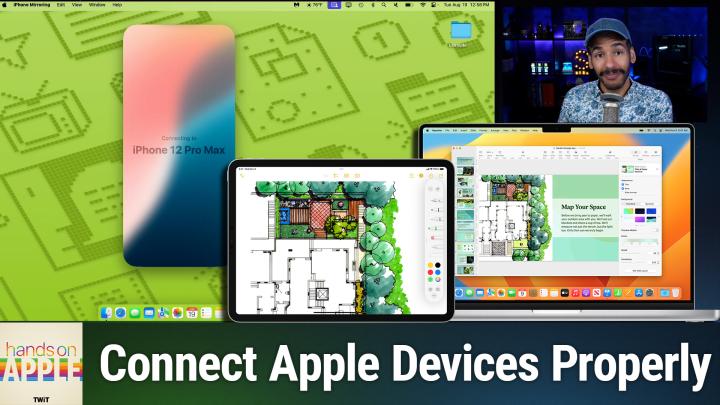
Why Isn’t Universal Control or iPhone Mirroring Working? Here’s How to Fix
AI-generated, human-reviewed.
If you’re struggling to make iPhone Mirroring or Universal Control work between your Mac, iPad, and iPhone, you’re not alone. In this episode of Hands-On Apple, host Mikah Sargent provides a clear roadmap for diagnosing and solving the most common issues, so you can enjoy these powerful cross-device features with fewer headaches.
Common Problems with Universal Control and iPhone Mirroring
Apple’s Universal Control and iPhone Mirroring offer exciting ways to use multiple devices together, but they can be finicky. Typical issues include:
- Universal Control failing to connect, disconnecting often, or only working via USB
- Mouse cursor or keyboard not working across devices
- iPhone Mirroring app missing, freezing, or unable to connect
- Timed-out errors, pairing interruptions, or confusion between devices
Universal Control uses a mix of technologies:
- Bluetooth LE for proximity sensing
- Wi-Fi Direct for fast data transfer
- iCloud for authentication (your devices must use the same Apple ID and have two-factor authentication)
- Continuity framework for seamless switching
iPhone Mirroring depends on:
- Continuity Camera framework
- Bluetooth for initial pairing, Wi-Fi Direct for streaming (end-to-end encrypted)
- Requiring Mac with Apple Silicon or T2 chip (macOS Sequoia 15+), iPhone on iOS 18+, both set up with a passcode and using the same Apple ID
Step 1: Check Device Compatibility and Settings
Universal Control
- Mac: macOS Monterey 12.4+; iPad: iPadOS 15.4+ (see Apple for full device list)
- Both devices must use the same Apple ID, two-factor authentication, and iCloud Keychain must be enabled
- Both should be on the same Wi-Fi network (not just same SSID especially on mesh networks)
- Bluetooth must be on and devices within 30ft (closer is better)
- VPNs and proxies often block these features. Turn them off!
iPhone Mirroring
- Mac with Apple Silicon (or T2), macOS Sequoia 15+; iPhone on iOS 18+, with passcode enabled
- Both devices with Bluetooth & Wi-Fi on, same Apple ID, two-factor authentication
- iPhone must be locked and near your Mac; Mac must not be sharing internet, using AirPlay or Sidecar
- Feature not available in EU Apple IDs
Step 2: Fix Most Problems by Signing Out of iCloud
Many Universal Control issues are caused by authentication or cloud sync hiccups. Mikah suggests:
- Sign out of iCloud on both devices
- Restart both devices before signing back in
- Wait several minutes after logging in before trying again
Step 3: Tweak Advanced Mac Settings If Needed
- Delete Universal Control preference files (if you’re comfortable) to reset settings
- Always show “Displays” in the menu bar for quick access
- Disable features like Stage Manager or Sidecar temporarily, as they can interfere
- Turn off Internet Sharing, especially if plugging iPad into Mac
- Try connecting iPad over USB first, then test wireless afterward
Step 4: Deal with iPhone Mirroring Errors
If iPhone Mirroring fails (timed out, can’t connect, device not found):
- Reset network settings on the iPhone (Settings → General → Transfer or Reset iPhone → Reset Network Settings)
- “Forget” and re-add Wi-Fi networks on Mac
- Force quit and restart the iPhone Mirroring app on Mac with the Option key
- Revoke and reestablish trust between Mac and iPhone in device settings
- Make sure Focus Modes and Low Power Mode are off, and check Screen Time restrictions on both Mac and iPhone
Step 5: Go Deeper with Mac’s Console (Advanced Users)
Mikah recommends using the Console app (search in Spotlight) to view logs for errors relating to Universal Control or iPhone Mirroring. Search for error messages (“unable to connect,” “authentication failure,” etc.) to pinpoint the issue.
Key Takeaways
- Double-check your hardware, OS version, and Apple ID/two-factor settings before troubleshooting further.
- A simple iCloud sign out/in with device restarts solves many problems.
- Both Bluetooth and Wi-Fi must be working, and network setup (especially mesh Wi-Fi) is critical.
- Advanced fixes may involve system preferences cleanup, network resets, or checking app logs.
The Bottom Line
Getting Universal Control and iPhone Mirroring to work can be tricky, but methodical checks and a few targeted fixes will solve most problems. Mikah’s episode of Hands-On Apple delivers a reliable workflow: confirm requirements, reset iCloud and network settings, evaluate interfering features, and try again. For Apple fans who rely on seamless device integration, these troubleshooting tips mean less frustration and more productivity.
Subscribe to Hands-On Apple for more Apple how-tos and troubleshooting tips!