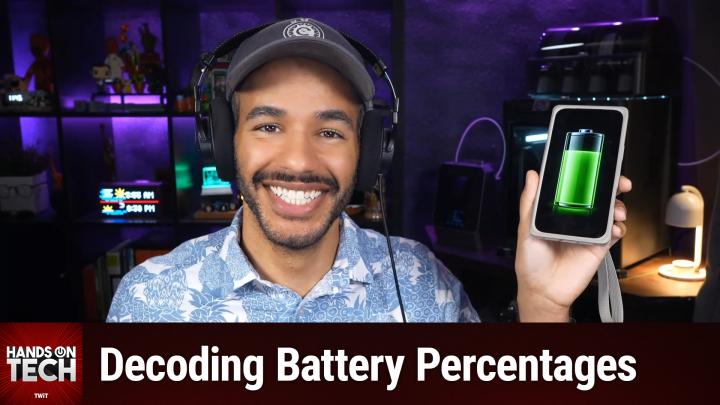
Why Your Phone Battery Percentage Isn’t Always Accurate
AI-generated, human-reviewed.
Many users notice their phone battery percentage staying at 100% or dropping rapidly from 30% to zero. On Hands-On Tech, Mikah Sargent explained that modern battery gauges are more of an estimate than an exact measurement—and shared straightforward steps to recalibrate your device for more reliable readings.
Why Your Phone Battery Percentage Might Be "Lying"
Unlike a traditional fuel tank, your smartphone doesn’t have a physical gauge measuring its battery’s fullness. Instead, devices rely on a fuel gauge chip that makes educated guesses based on charge cycles, voltage, temperature, and your usage history.
Over time, these estimates can drift. Real-world charging habits—like partial top-ups, temperature swings, and battery aging—can throw these calculations off. That explains why some phones seem to “sit” at 100% for a long time, then quickly run out after reporting 30%.
How Battery Percentage Estimation Works
The battery percentage you see is the result of:
- Coulomb counting, which tracks the flow of energy in and out over time.
- Voltage and temperature measures, to predict how “full” the battery is.
- Usage history, adjusted against expected performance.
But batteries degrade. Imagine a “barracks” metaphor: if parts of the building crumble, you can’t fit as many soldiers, but the counter might not know, leading to inflated estimates.
Most devices use a tri-state fuel gauge system to combine these data points, but none are perfect. This can result in sudden drops from seemingly safe percentages—even more so as batteries age.
Should You Recalibrate Your Battery? Here’s When and How
Recalibration can help if your device percentage jumps dramatically, shuts off unexpectedly, or shows inconsistent readings.
For Phones and Tablets:
- Charge to 100% and keep charging for an extra 2 hours.
- Use your device until it powers off from low battery.
- Charge uninterrupted to 100% again.
For Laptops:
- Fully charge to 100% and allow 2 extra hours charging.
- Use until the device sleeps or shuts down from low battery.
- Wait at least 5 hours.
- Fully recharge to 100% uninterrupted.
Some newer devices may require battery management features to be temporarily disabled before recalibration, as suggested by repair guides such as iFixit.
Why Modern Devices Rarely Need Manual Recalibration
Mikah Sargent noted that most modern smartphones automatically recalibrate in the background. Deep discharges can actually stress lithium-ion batteries, so manual recalibration should only be used as a diagnostic tool if you suspect seriously inaccurate readings—not as a monthly maintenance routine.
Frequent deep discharging shortens battery lifespan. For optimal health, try to keep your battery between 20% and 80% whenever possible. Many devices now include settings to help users limit max and minimum charge levels.
How to Check Battery Health
On iPhone:
- Go to Settings > Battery > Battery Health.
On Android:
- Search for “battery health” or “battery care” in settings (the exact name varies by manufacturer).
For laptops, manufacturers offer their own battery health tools. Regularly check for these to monitor real battery degradation—essential for knowing when a true battery replacement is needed.
Key Takeaways
- Battery percentage is an estimate, not a precise measurement.
- Modern devices try to handle calibration automatically, but significant issues may require a manual recalibration.
- Overzealous calibration and full discharges can damage battery health—use these procedures sparingly.
- Replacement batteries are available for most smartphones and laptops; sometimes, a new battery is the best fix.
The Bottom Line
Don’t stress over minor fluctuations in battery percentage. If your phone’s readings are seriously inaccurate, one recalibration might help—but avoid making it a habit to run your device totally dead. For lasting performance, use manufacturer battery health features and consider replacement if capacity is significantly reduced.
Want more practical tech advice? Subscribe to Hands-On Tech:
https://twit.tv/shows/hands-on-tech/episodes/278