Windows 11’s Best New Features for 2026: What’s Worth Using?
AI-generated, human-reviewed.
If you want to make the most of Windows 11 in 2026, several new features offer real benefits—from easier system recovery to improved app security and better gaming modes. On Hands-On Windows, Paul Thurrott highlighted which changes are actually useful, where to find them, and why they matter right now.
Quick Summary: What’s New and Why You Should Care
Windows 11’s latest updates in 2026 bring a series of practical improvements focused on stability, security, and usability. This year, Microsoft is prioritizing user pain points rather than flashy overhauls, making it a good time to take advantage of purposeful upgrades. These features are rolling out in monthly security updates, including March and April, and they address needs for regular users, IT pros, and gamers alike.
New Features That Deliver Value
1. Network Speed Test Direct from Wi-Fi Settings
You can now quickly test your internet speed from the Wi-Fi settings panel. Instead of searching for a third-party tool, click the new “Test Internet Speed” button to access Bing’s built-in speed test. This adds convenience, especially if you troubleshoot connectivity issues.
2. Advanced Camera Controls in Settings
For those using cameras that support pan and tilt, Windows 11 now lets you manage these directly within the built-in Settings app. Look under Bluetooth Devices > Camera Settings to access advanced controls, streamlining what once required vendor software.
3. Sysmon Integration for Power Users
Sysmon, a longstanding sysinternals tool for deep system monitoring, is now available as an optional Windows feature. Power users and admins can install it natively—no extra downloads needed—making it easier to monitor system events and troubleshoot advanced issues.
4. Quick Machine Recovery Improvements
Quick Machine Recovery is now auto-enabled, designed to help your computer recover from boot problems. With new settings, it only checks once for a solution by default (instead of endlessly looping), and you can customize how many times it searches, reducing headaches when troubleshooting.
5. Modernized System Restore (Point in Time Restore)
The classic System Restore feature is getting a much-needed revamp with a modern UI called Point in Time Restore. It automates restore point creation on a schedule, works seamlessly with older restore points, and gives you a clearer way to recover from bad driver installs or problematic updates.
6. Smart App Control—Easier to Manage
Smart App Control keeps untrusted or malicious apps off your PC. The latest update allows you to toggle this feature on or off anytime, improving flexibility. Developers can turn it off to avoid interference, while everyday users benefit from enhanced security with easy re-enablement.
7. User Folder Name Customization in Setup
Now, when setting up a new Windows 11 installation, you can define the user folder name (the one in C:\Users) instead of being locked into default 4-letter names. This is especially helpful for users with scripts or workflows that require predictable folder paths.
8. Drop Tray (formerly Drag Tray)—Now Optional
The Drag Tray, now renamed Drop Tray, appears when you drag files for sharing or moving. For those who find this pop-up intrusive, you can now turn it off in Settings > System > Nearby Sharing.
9. Voice Search in File Explorer
You can now search for files using your voice in File Explorer, part of Microsoft’s broader push for natural language interaction.
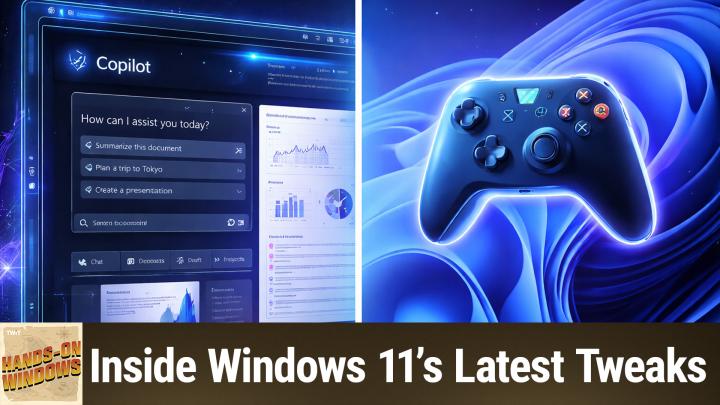
10. Web Browser Split View in Copilot
Soon, when clicking a link in Copilot (Windows 11’s AI assistant), the page will open directly inside the Copilot app using Microsoft Edge, minimizing app-switching and boosting productivity.
11. Xbox Mode: Desktop Gaming Gets Console-Like Simplicity
A new Xbox Mode will allow your Windows 11 PC to behave more like an Xbox console, going full screen and minimizing background distractions. This update especially benefits gamers using handheld devices or controllers and aims to make the PC gaming experience smoother.
Key Takeaways
- Windows 11 is focusing on fundamentals—reliability, simplicity, and robust performance.
- Most new features are about making everyday tasks easier and boosting system stability, not introducing disruptive changes.
- Upgrades like Point in Time Restore, customizable user folders, and better app control offer targeted solutions to real user issues.
- Gamers and power users receive specific attention with Xbox Mode, built-in Sysmon, and improved sharing options.
What This Means for You
With less emphasis on major system redesigns and more on refining what works, the 2026 updates mean fewer disruptions and more useful options. Everyday users get enhanced file sharing and recovery tools, while IT pros and enthusiasts benefit from native admin utilities and deeper customization. Gamers will see a more console-like experience, positioning Windows 11 as the most flexible version yet.
The Bottom Line
If you want a more reliable, customizable, and secure Windows experience, these 2026 updates are worth exploring. Focus on enabling features like Smart App Control and Quick Machine Recovery, checking out Xbox Mode if you’re a gamer, and leveraging new restore and setup options for added control.
For a detailed walkthrough and more expert analysis, watch the full episode and subscribe to Hands-On Windows.
Subscribe for more: https://twit.tv/shows/hands-on-windows/episodes/185