Hands-On Apple 195 transcript
Please be advised this transcript is AI-generated and may not be word for word. Time codes refer to the approximate times in the ad-supported version of the show.
0:00:00 - Mikah Sargent
Coming up on Hands-On Apple, let's take a look at troubleshooting some startup errors and speeds with your Mac. Stay tuned.
0:00:12 - Leo
Podcasts you love From people you trust. This is Twit.
0:00:31 - Mikah Sargent
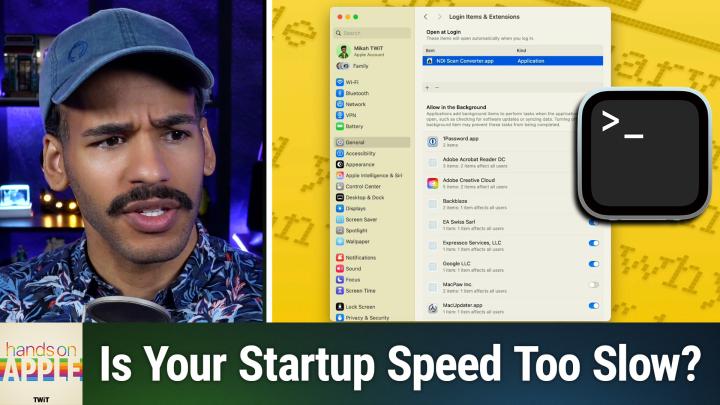
Hello and welcome to Hands-On Apple. I'm Micah Sargent, and today we are taking a look at something that I have seen people complaining about Slow startup speeds. They restart their Mac, or maybe you're a person who shuts down your Mac and when you go to kick it back on, it takes a little longer than maybe you've had in previous versions of macOS. So let's take a look at some of the things that you can do to deal with this problem by heading over to macOS and taking a look. Here we are on macOS and, as you can see, I am running macOS Sequoia. Now the first thing that we want to look at is something that is common for everyone. There are probably apps and other things that you have installed that have, you know, decided that they need to be part of your startup, that when you first log into your machine, these things are going to run in the background. Now, I've done an episode before of Hands-On Mac that talked about login items, but this is a more sort of general look at things, and so I want to remind you how you go about checking if you have stuff that is trying to log in in the background. So, first and foremost, we launch the system settings app and we go to the general tab and we choose login items and extensions. Now there's one application that currently opens at login. So when I log into this machine or when you log into your machine, all of these items up here are going to automatically open. Now the only thing that I have here is an app, and this app is the app that I use to display my Mac. For all of you so, it's called an NDI Scan Converter.
You may have many apps in here. These are the apps that are going to launch at startup, and, depending on how many apps you have here, that could be the reason why your startup is taking a while. You may go through and decide, oh, I don't need that app, I don't need that app. Go through and simply hit the minus icon to remove the app that you don't want. Now there could be an app that you regularly do use at startup. You'd hit the plus icon, choose that app. You can also click and drag the app into this area to get it to automatically open that app at login.
Now, beneath that is an option that says allow in the background, and this allow in the background option is a little bit imprecise because when it comes to apps that are allowed in the background. These are apps that are the or I should say uh services, processes that are allowed to run in the background but often kind of get kicked off at startup, at login. So check this as well and make sure that these are apps that you're okay having run in the background. And if there's anything that you aren't wanting to have automatically going, when you start your Mac and as you're using it, this is where you would go about disabling it you can simply toggle off that allow in the background option. Now, if you have the Adobe suite or you have a Google Chrome or you have Google Chrome or some other Google product installed in your Mac, I would recommend leaving those options alone, because almost always, these have to do with some of these services that run in the background for those apps, and disabling them coming from someone with the experience of having done so messes things up, so it's best to leave that alone. So if you see a Google option or an Adobe option, best to just let that go in the background. But again, you can remove any of these items that you don't want going in the background.
Now, this is the way to go about making these changes using system settings. But it's not the only way and in some cases you can get more information if you use terminal. Terminal, of course, is the command line on the Mac and we're going to access that by holding down the command key, hitting space bar and then starting to type in terminal. Up pops terminal, we hit enter and then it will allow us to use terminal. So with this I can view all of the login items by typing in L-A-U-N-C-H, that's launch C-T-L. That's the command. We'll hit space and we will tell it what we want it to do. We want it to list all of the stuff that is going to start up at login.
Now, most of this, you'll notice, has comapple. Those are processes that are Apple processes, that are part of what's built into the system. So you aren't going to want to make adjustments to those. But for example, here we see uszoomupdater. So that's Zoom's updater. That's part of the process. Let's keep scrolling and see if we can't find something else that kicks off at login. Still comapple. There's comadobe. So we've got an Adobe process. We can keep scrolling through until end. I'm not seeing a whole lot else here. Comonepassword so there's my one password browser.
Now, at any point, with those non-Apple options, you can type in once again launchctl. So that's telling it. This is the command that I want to use. We're going to go with the word command in this case, and then we type in the word remove and then we would type in the specific identifier for the process. So if it was comslowloadingappapp, then that would be the thing that we would do and type in, and it would allow us then, after hitting enter, to actually remove that item from our login items. So if you're having trouble getting it to remove using the login items option, you can head into the terminal and do a remove from there.
Now there's another thing that you may come across and that is launch items that aren't showing up in the places that you would expect them, and the way to access those is via Finder, and so from our desktop we can either click on Finder, or just clicking on the desktop will also bring Finder up here to the top menu, and we want to go to the word Go and then we want to choose Go to Folder. Now the other way to do this is with a keyboard shortcut, so I can also hit Shift Command command and tap the G icon, and that will automatically launch the go option and we are able to use finder to go to a specific place. And, funny enough, the last place we went to is where we want to go slash library, slash launch agents, which are the services that are going to turn on and activate when we actually launch the machine. So we can see all of the. These are all the non-Apple versions. The Adobe options are here, google options are here, malwarebytes is here, and then Zoom is here. If we didn't want these and we couldn't get them to go away some other way, this would be a way to remove them.
Now, command shift G again and we want to go to launch demons. Here we can see all of the launch demons as well. And again, previous episode about the difference between launch agents and launch demons. You can check that out to learn more about that. But perhaps for some reason we're no longer using the EA application, but it keeps trying to start at startup and it's slowing things down. This is where we would be able to remove that and say no, I don't want you doing this anymore. Get rid of it, goodbye.
And then the last one we want to do is check our user-specific launch demons and or, excuse me launch agents. And so the way that we do that is by putting the tilde icon before library. So it was slash library, slash launch agents. Slash library, slash launch demons. Now we're doing tilde slash library, slash launch agents. What that does is it's a shortcut. The tilde icon is equivalent to saying users slash the name of the user, which in this case is Micah Twitt. Slash library, slash launch agents. So it's just kind of a shortening of that. And then we will go to that area and you can see that we have CleanMyMac and Backblaze and an Adobe tool. Again, we saw Adobe in every single one of those places. But if there was something in here that was sticking out to you, you said, oh, I don't use that anymore, I've uninstalled the app, but that launch agent is still there. This is how you would get rid of it. There's another way to help speed up startup and, in particular, kind of right after startup. Remember that we did command space to launch terminal.
Sometimes macOS Sequoia, in particular, can get hung on trying to re-index Spotlight. So let me explain this a little bit. Spotlight is your tool, that command space tool to search across your Mac and look at the different files, applications, everything that you have installed in your machine, right? Well, in order to get the system to actually find what you're looking for, it requires Spotlight to have an index of the different stuff that's on your Mac. So it's sort of like a list, an always updated list. It tells it where to look and what's there and kind of speeds things up by having a little bit of a cheat sheet to look at when it's trying to help you find things. A re-index basically throws out the old list and gives you a new one. When you update macOS, sometimes that list can become corrupted and it will keep trying to spin on that list, which can cause hangups. So in order to kind of force a re-index of Spotlight once again, we can go to Terminal and we want to use to serve as the spotlight indexing and spotlight command tool.
There are many different options available to you using MDUtil, but what we want to do specifically is erase the spotlight index and restart. But let me show you first and foremost what happens when we type in mdutil and hit enter. We can see what the different commands are. So I can see that in order to erase and rebuild the index I need to use a command that is a dash and then the capital letter E. So what I would want to do here is type in mdutil and type in dash or hyphen and capital E and hit enter. But it didn't work. And that is because you are required to run this as the administrator of the machine or the root of the machine. So in order to do this, you actually have to type in sudo first and then it will ask you for your password. You'll type that in and now it just erased my spotlight index. If I type in pseudo MDU till and we look back at our list, look at the option that says print indexing status. So in this case it's going to tell us if there's anything we need to know about the spotlight index and we can check here to see if it re-indexed it. And because this is a simple system there's not a lot running for or installed with this Micah Twit account very quickly able to index Spotlight in this case. But being able to have that information and, again more importantly, re-indexing Spotlight can sometimes solve those hangups when it comes to the speed of the system.
Now there's another place that we want to look. So we're gonna go back to Finder and we're going to choose, go to Folder Remember Shift-Command-G for Go and this time we want to look in the Caches. So there are a few places where cached files are stored. We can go to tilde, which, remember, is a shortcut for the user slash library, slash caches, and all of these are cached files that can, if we would like to, that we can, if we would like to delete, and by removing these then we are able to cut back on what is stored for later. Now, sometimes this can be helpful to have and we would want to keep it, but in other cases you may not need this stuff and so removing it is not an issue. The other place that you look is just library caches, which is the system version, and removing these requires the use of an administrator password. But again, these cached files can be removed. I'm kind of doing these in steps. So if you're still getting a slow machine after you've done the options up to now, you're still getting a slow machine after you've done the options up to now, then going in and removing your caches can sometimes help.
One final suggestion for you If you're running and using an older Mac, then it is possible that some of the cool new animations that are in Sequoia are causing a bit of a slowdown for your startup on your machine. Heading into system settings, going into accessibility and choosing display will give you the option to reduce motion, which will cut back on animations, and also reduce transparency, which will remove some of that transparency that you're seeing in the system UI. This makes it. It works a little bit. It relieves some of the pressure on your processor, your graphics processor, which can in turn lead to quicker startup times if part of the system isn't sort of being focused on trying to get that to work. Lastly, you can disable the sort of genie effect. You'll notice that as I downsize that application, it does this cool genie effect. Just do the scale effect. Scale is not as involved and therefore takes less of the graphics processing. This again is kind of post startup, but as you're getting the system up and running after you've logged in, you may find that that's the slowest time because it's trying to open a bunch of applications and so cutting back on some of this stuff will help to get things going as quick as possible.
You can also choose to turn off the animation of opening of applications. This is really big whenever you're starting up with the system and if you're not using Stage Manager. Just turning off Stage Manager is very helpful because Stage Manager is very graphics intensive. Now, on a modern Mac with Apple Silicon, you're probably less likely to run into issues with this. But again, we do these kind of step by step by step.
So, starting with cleaning up your login items, going into terminal to list and remove login items, checking out your background processes and, in particular, looking at those launch agents and launch daemons, re-indexing the spotlight, clearing your system caches and then finally going in to disable visual effects, that all comes together to improve upon your startup speeds. So there are some suggestions for you. If you have noticed a slowdown in startup, I would love to hear about it. Reach out, let me know, and I'd love, of course, to hear if these suggestions worked for you. Thank you so much for tuning into this week's episode of Hands on Apple. I will, of course, be back next week with another episode, but until then, have a great rest of your day and, of course, reach out HOA at twittv with your questions, suggestions, etc.
0:18:45 - Leo
Bye-bye. Hey. Thanks for tuning in to Twit, your tech hub for intelligent, thoughtful conversations. If you want to take your experience to the next level and support what we do here at TWIT, say goodbye to ads and say hello to Club TWIT. With Club TWIT, you unlock all our shows ad-free. You also get exclusive members-only content. We do a lot of great programming just for the club members. You also get behind-the-scenes access with our TWIT Plus bonus feed and live video streams while we're recording. And don't forget the fantastic members only discord. It's where passionate tech fans like you and me hang out, swap ideas and connect directly with all of our hosts. It's my favorite social network. I think you'll like it too. Club Twit it's not just a subscription. It's how you support what we do and become part of the Twit family. Your membership directly supports the network, helping us stay independent and keep making the shows you love. If you're ready to upgrade your tech podcast experience, head to twittv club twit and join us today. Thanks for being here and I'll see you in the club.