Hands-On Apple 223 transcript
Please be advised this transcript is AI-generated and may not be word for word. Time codes refer to the approximate times in the ad-supported version of the show.
Mikah Sargent [00:00:00]:
Coming up on Hands on Apple, we continue our look at the Passwords app and the suggestions I have for you therein. Stay tuned. This episode is brought to you by OutSystems, a leading AI development platform for the enterprise. Organizations all over the world are creating custom apps and AI agents on the OutSystems platform, and with good reason. Build, run, and govern apps and agents on one unified platform. Innovate at the speed of AI without compromising quality or control. Trusted by thousands of enterprises worldwide for mission-critical apps. Teams of any size and technical depth can use OutSystems to build, deploy, and manage AI apps and agents quickly and effectively without compromising reliability and security.
Mikah Sargent [00:00:41]:
With OutSystems, you can accelerate ideas from concept to completion. It's the leading AI development platform that is unified, agile, and enterprise-proven, allowing you to build your agentic future with AI solutions deeply integrated into your architecture. OutSystems—build your agentic future. Learn more at OutSystems.com/TWIT. That's OutSystems.com/TWIT. Podcasts you love from people you trust. This is TWIT. Welcome back, or welcome to Hands On Apple.
Mikah Sargent [00:01:24]:
If this is your first time, go back at least and watch the last episode of the show. That is the of the password apps series that I'm currently doing. We are taking a look at Apple's built-in Passwords app to help you understand how to use the Passwords app, what you need to know about it. Now, if you were here last time, well, we walked through the Passwords app, what it is, where it came from, how you handle the basics. And if you did do your homework, well, you already know that you've probably got a lot of passwords and in fact you may have gone through and gone as far as to remove some of the junk. So now that we've got it kind of, you, you understand it a little bit, you've cleared things out, it's time to dig in and take things a step further. So today we're going to be talking about two-factor authentication, about passkeys, and even tackling the security alerts that Apple has within the Passwords app. So let's dig in.
Mikah Sargent [00:02:25]:
In. First and foremost, here we are on macOS and we are looking at verification codes first, otherwise known as TOTP, these time-based one-time passwords. Many of you will know that as 2FA or two-factor authentication, but the actual thing of having a code that changes every 30 seconds, it's usually a 6-digit code, it is itself called a TOTP, a time-based one-time password. The way that this works is there's some sort of QR code or code that you copy and paste, and that will help the algorithm generate a 6-digit code that expires after a certain period of time, 30 seconds. You put that code in and the app knows that the app or the service knows that it's you. So when you are creating an account, this is the way to go about it. And there are a few ways to figure out how to get a QR code added. The cool thing is for the most part, your passwords app is going to do a lot of the work for you.
Mikah Sargent [00:03:35]:
So on iOS, it can automatically generate these codes. On macOS, it can also do that. Excuse me. And it can also autofill them. So what does that look like? Well, Let's head to the passwords app and see what we have here. For example, we have an account, Amazon, and right now, while it does have a password, it does not have a two-factor authentication code. So what I have done is I've gone to the Amazon site, I've created an account, and I want to add two-factor authentication. This will work whatever site or service you're using so long as the site or service has two-factor authentication.
Mikah Sargent [00:04:12]:
So I'll head into the login and security section for Amazon. And depending on the app, you may be able to tap or click set up code and have it provide this information for you and get you to the right place. So let's look at this page here. We can see two-step verification is an option. We're going to choose to turn that on, and we can either use our mobile phone number, which is what we don't want to do, or use an authenticator app. We want to do the authenticator app now. Up pops a QR code, but here's the problem. We're on macOS.
Mikah Sargent [00:04:45]:
How do I get that QR code to work with my password app? Well, if you right-click on the code, you should see an option that says set up verification code. Clicking on that then pops up the different options that we have here. We want to choose the Amazon option and choose add code. And then once that's done, You'll see that there's a code that appears. It is automatically using that barcode, and now I have a little prompt that says, do you want to enter the verification code? Once I've done that, then it goes through the process and properly displays the code for me. Now, depending on the site, you may have an attempt or a change to the way that the site is looking at your security. So for example, Amazon did send a code to my email to make sure that that was indeed me, uh, that did properly allow me to set up two-step verification. So that is now set up.
Mikah Sargent [00:05:58]:
And if I were to log out, which I want to do of this account, we'll head back to macOS and I can see that I've got my Amazon account. All I have to do is put my finger on the Touch ID to authenticate. It automatically types in the username, it puts in the password, and now it asks for the OTP. And now I have access to my Amazon account. So setting up two-factor codes, very easy to do. It will automatically fill those for you after you're done. Now, something important to understand, if you are moving from another authenticator app to The passwords app. You may struggle with getting these two-factor authentication codes set up.
Mikah Sargent [00:06:48]:
So my recommendation for you is as you are importing, kind of going step by step through the process of making sure that all of your two-factor authentication codes are properly scanned in, are properly added in so that you are able to use those. So just before deleting all of your codes from a previous app, don't do that. Save them. Get them typed in, make sure they're all there, and then you can go forth. So that is two-factor authentication. We've talked about two-factor authentication for a long time. It gives you the ability to not only have a password, but if your password were to be guessed, if they don't have access to that special code that is created, then someone who's trying to access your account is still unable to do so. But there's actually a more secure method, and those are passkeys.
Mikah Sargent [00:07:36]:
And yes, The passwords app does support passkeys. So let's take a look at how that works. First and foremost, it's important to understand that a passkey can replace your password entirely. You don't have to remember a string of characters. There's nothing to autofill. And instead, your device and the website's server create what is called a key pair. The server and your device work together to verify one another and make sure that it is indeed you who's accessing the account. You do have to have authentication through Face ID or Touch ID or a passcode, but outside of that, there's no verification requirement.
Mikah Sargent [00:08:18]:
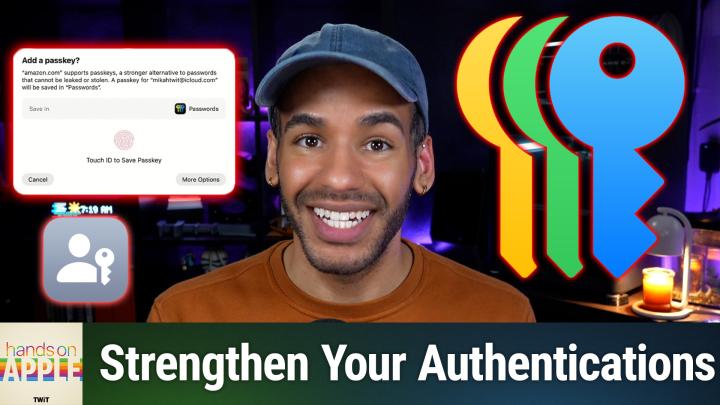
And people can't steal these passkeys, unlike a password, which can be stolen, unlike a 6-digit code sent to a phone number, which could be stolen by cop— by, uh, copying the SIM and being able to access some sort of SIM jacking attempt. So how do we create a passkey? Well, let's head over to macOS again. Luckily, Amazon has passkey support. So we'll go up to our account and we will head back into login and security. And there's another option here. It says passkey. We choose setup. And we click set up one more time, this will automatically have the system be notified, letting it know that I'm trying to create a password.
Mikah Sargent [00:09:04]:
If I tap to authenticate with my finger, it saves that passkey to the passwords app. And now if I open the passwords app and I look at Amazon, I can see that not only is the QR code or the two-factor code here, but I also have a passkey that was created it today. Here you can see a Passkey is here and it gives a little bit more information about it. Now, if I go up to my account and I sign out, I can then go back to Amazon. Whoops. And I can sign in. I'll put in my username, hit continue, and now it asks, do you just want to sign in with your Passkey? I do so, authenticate with my finger, and I get to skip the password. I'm back in, no problem.
Mikah Sargent [00:10:02]:
Now, depending on the site or service, passkeys may look different. In some places they work as a second factor of authentication, but many of them are trying to be simply just the way that you log in. So if you are trying to access this device then, or your accounts, make sure you know whether you're going to be needing to use a password or a passkey, and if passwords can be disabled in place of passkeys. There's a lot to consider when it comes to using passkeys as a replacement for passwords. You want to make sure you have iCloud Keychain turned on across devices because those passwords will sync across devices, which means that when you try to log in on your phone or your iPad, it's also going to work there as well. So that's a look at the passkeys and two-factor authentication codes or TOTP codes. There's one last thing that I want to talk about, and that is security recommendations. So Apple has some different security recommendations that it will give you based on what is going on with your passwords.
Mikah Sargent [00:11:16]:
So what happens? Well, the app is going to look at your passwords and it's going to mark them in some different ways. It may mark them as reused. It may mark them as weak. It may mark them as leaked. If it marks them as reused, you can guess what that means. It means that it's shaming you for using the same password on different sites. So if you use the same password for more than one service, you are making yourself vulnerable because the weakest of those services security-wise is the one that will be responsible for you having that password that you've then used on more sites leaked and available for people to take and make use of. Passwords marked as weak are passwords that can be guessed by an attacker, either they themselves or through the use of a computer program which can crack passwords.
Mikah Sargent [00:12:05]:
And then passwords marked as leaked are only there if you turn on the password monitoring feature. And what happens is The system will listen for services that provide data on whether your passwords and your information have been leaked to the web somehow, and then let you know that that's the case. Now, because this account doesn't have many passwords in it, I currently don't have any security recommendations. It is likely that you will have at least one. Follow through that process to understand what you need to do when it comes to fixing these passwords. So if you have a compromised password, then those have appeared in known data breaches. It doesn't necessarily mean that your account itself was breached, but the password you're using has shown up and that therefore it's vulnerable. Reused passwords, obviously, uh, one's breached, they're all breached.
Mikah Sargent [00:13:05]:
And then weak passwords, just way too easy to guess. Now, I recommend not trying to fix everything in one sitting. It is, it takes a long time. You might get burned out. So prioritize compromised passwords are incredibly important, particularly if they have anything to do with financial information. So check throughout the whole thing, your security recommendations for any banking, credit cards, investment accounts, and email, because that is one of the ways that people can get your password or access to your other accounts. They get your email account username and password. They're in for the "I forgot my password" option across sites.
Mikah Sargent [00:13:42]:
After that, then go with the reused passwords that are on important accounts, and then those weak passwords that are on low-stakes accounts. So, you know, you one time signed into a site, needed to create an account, they can wait, but then, you know, clean them up over time. What's great is that the Passwords app does help you. You can tap on a flagged entry, which will give you a change password button that takes you directly to the site. You log in, you navigate to the password change screen, then the Passwords app's going to suggest suggest a new strong password, you'll save it, and then it's going to be updated in the Passwords app automatically. So if you are struggling, this will help you get to where you need to get, and I think it's more of kind of a checklist feature, right? So here's my recommendation for you: check this security category, say, once a month. Set yourself a reminder, uh, or perhaps it's every time you open this app. Think of it like checking your credit score.
Mikah Sargent [00:14:35]:
It's a quick glance to see if anything new has popped up. You don't have to regularly, you don't have to check it every single day, but regularly checking in is just a healthy habit. And then it's important to note that the app does proactively notify you if a saved password shows up in a new breach. So in that case, you don't have to be checking it to know that that's going on. So we've taken a look at all of the sort of additional security that you can do for your passwords. Here is your homework. Try to set up, if you have not yet done so, at least one verification code in the Passwords app. You can pick an account you log into often so that, you know, you'll actually experience this autofill workflow.
Mikah Sargent [00:15:14]:
You'll regularly use it. It'll also give you that warm fuzzy feeling of knowing that you're protecting your account. Go ahead and create a Passkey on a site that supports it. If you have a Google account, that's a great place to start. It's very easy to do and Google makes Passkeys truly part of the login experience. And then This is the big one. Please open that security category, fix 2 to 3 flagged passwords, and of course start with those most important accounts. So now if you've done these things, you have verification codes that are living right alongside your passwords with autofill handling the heavy lifting.
Mikah Sargent [00:15:48]:
You've seen how passkeys work. They are being touted as the future of logging in. We'll see if that continues to be the case. Uh, and you've started chipping away at those lists, at that list of security alerts. Next episode, we're covering some of the more advanced features within the Passwords app, including shared password groups, the limitations you should know about, and the big question, which is, is that password app enough or do you still need a third-party password manager? We'll check in on that next time on Hands On Apple. But until then, I've been Micah Sargent, and I thank you so much for tuning in. Buh-bye. If you enjoyed this, well, there's something else you might like.
Mikah Sargent [00:16:29]:
If you want the big picture on what's happening in tech, subscribe to This Week in Tech. Leo Laporte and the panel bring you the stories shaping the industry every Sunday.