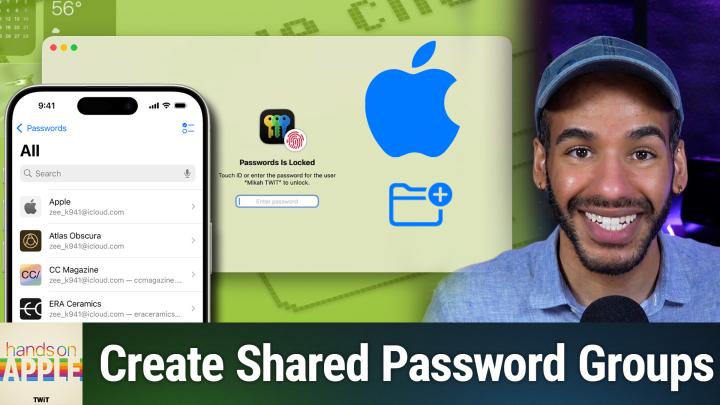
Hands-On Apple 224 Transcript
Please be advised that this transcript is AI-generated and may not be word-for-word. Time codes refer to the approximate times in the ad-supported version of the show.
Mikah Sargent [00:00:00]:
Coming up on Hands On Apple, let us continue our look at the Passwords app and end things with the big question: is it right for you? Stay tuned. Podcasts you love from people you trust. This is TWiT. Welcome to Hands On Apple. I am Micah Sargent, and today we are wrapping up our coverage of the Passwords app with our third and final episode of the series. This time, all about kind of what remains. So let's dig in and take a look because over the last two episodes, we've gone from, well, maybe for some of you, a wait, there's a passwords app sort of feeling to setting up verification codes, setting up Passkeys. You've cleaned up old entries, you've fixed some flagged passwords, and you're in genuinely better spot security-wise than you were a few weeks ago.
Mikah Sargent [00:01:03]:
Today, it's time to wrap things up with one of the most practical features in the app, and that is sharing passwords with other people. And then we're going to have an honest conversation about what this app simply can't do. Let's start with shared password groups, because this is a big deal for anybody who shares accounts with a partner or a family member or roommate or an enemy. It doesn't matter. Streaming services, utility accounts, Wi-Fi passwords, shared subscriptions, there's always something that more than just one person needs to access. That's a time where they go, do you have the password? And you go, yeah, I do. Hold on, let me text it to you. No, you don't need to worry about that.
Mikah Sargent [00:01:47]:
You can use shared groups in the Passwords app. So let's head over to macOS and take a look. First and foremost, we will open the Passwords app. I did so by using Spotlight. It'll ask me to tap to authenticate by putting my finger down, or you can type in your code. What is a shared group before we get into it? Well, a shared group is a collection of passwords that stays synced between everyone in the group. So you add a login to the group and then everyone who's a member is able to see it, use it, and autofill it on their devices. And the great thing is that changes sync automatically.
Mikah Sargent [00:02:23]:
So if you update the Netflix password, everyone in the group gets the updated version. You don't have to worry about texting that new password to you know, a bunch of people. So how do we do this? Well, first we open up the Passwords app and you can see Shared Groups down here in the bottom left. If you hit that plus sign, you can create a new shared group. Now you might call this something like Household, and you can see that the owner, me, Micah Twitt, is in it, and I can show my contact card, copy the email address. I can click Add People. Now when I click that, we're going to switch to this view because up will pop different people. And you want to add a person, you start to type in their name, you want to, and we'll switch back to macOS here, add a person to that shared group.
Mikah Sargent [00:03:10]:
Now this person has been added and they will see on their device a notification letting them know that they have indeed gotten an invite to the Passwords app. Now when this person joins, uh, that Passwords app, they will have access to this household group. And what's cool about it is when you set this up, you can choose the passwords that already exist here. So I would, for example, let's say we had a shared DoorDash account and a shared Netflix account and a shared Spotify account. I would select those and choose to move them to the shared access. Now you'll notice that when I moved those to that shared group, up popped this notification that says, "Mica S. will have access to the passwords and passkeys you've shared as well as any you share later. You can send a message to let them know they've been invited.
Mikah Sargent [00:04:13]:
They can still accept your invitation if you don't send a message." I'm going to choose not now because I got the notification on my phone. So I am able to join that group by choosing accept on my device. I'm not showing that on the screen because it has all sorts of contact information. And when you do so, you are able to go in and choose if you also want to share passwords in the shared group with other people. Now, something that's important to understand, there's no sort of admin access. So once this is going on, once someone's been added to this group, you all have access to the same devices or all to the same passwords and can make adjustments to them. So you will need to keep that in mind if you are sharing this with people who, you know, may desire to make changes. There's not an admin or read-only way of doing it.
Mikah Sargent [00:05:15]:
It's fully collaborative. If you do remove someone from the group, it revokes their access to all the shared passwords immediately. And then shared groups importantly do use end-to-end encryption. Which is the same as the rest of iCloud Keychain. So that means that Apple is not able to see these passwords. What do you, what can you do once you've done this? Well, clicking on manage allows you to remove a person by choosing the three dots and choosing to remove from group. And then you are able to go in and make adjustments to who is added. So you can choose to add items.
Mikah Sargent [00:05:51]:
After the fact, and those get added to this special group. So that's something to bear in mind as well, is that it's not just stuck with the first set that you put in there, but that you can always add more after the fact. And especially if you're sharing with a household, this is a great way to make sure that everybody has access to those passwords. Now let's talk about how this compares. To some of the third-party password options. 1Password and Bitwarden, sponsors on the network at different times, both offer shared vaults, but they do require that everyone be on the same subscription or family plan typically. Apple's version, free and built in, so you don't have to worry about a subscription. There's no app you have to install.
Mikah Sargent [00:06:35]:
It's all right there in the system. Of course, the trade-off is flexibility because other password apps do allow you to set permissions. You can create multiple vaults that have different access levels. You can share with people on any platform. Form. This version is simpler, but that also does make it more rigid. So it's not just, uh, it's, it's not this sort of free-for-all— rather, it is a free-for-all situation with the passwords app of people have access to this vault or this group, anything that's in there able to be changed. So if you feel like you need more control, this may not be the place to do it.
Mikah Sargent [00:07:15]:
I also want to mention One other thing about the Passwords app, the Passwords app will store every Wi-Fi network you've connected to unless that network is hidden or it's enterprise. And so if you choose the Wi-Fi section, you can see the different Wi-Fi networks that you have connected to over time. The cool thing is the, uh, the network that you're currently connected to will show up in blue, but all of them are there and you can select one of them at any time and grab that password and be able to type it in. It also has a QR code that you can show to someone else and have them easily log into the network. So bear that in mind when you are using the Passwords app, that you are able to, uh, access that stuff. Now I do have loads more to talk about. We need to discuss where the Passwords app falls short. But before we do that, I want to take a quick break to tell you about our sponsor.
Mikah Sargent [00:08:15]:
This episode of Hands on Apple brought to you by ThreatLocker. ThreatLocker's Zero Trust platform now delivers the industry's most comprehensive suite of Zero Trust solutions, protecting endpoints, networks, and the cloud. By extending Zero Trust enforcement to cloud services and company networks, ThreatLocker ensures that devices are validated through a secure broker before connecting to platforms such as Salesforce, Microsoft 365, Asana, Google Workspace, and GitHub, even if a user is successfully phished, attacked attackers cannot access resources unless they have possession of the user's trusted device. ThreatLocker works across all industries and provides 24/7 US-based support. It supports Windows, Mac, and Linux environments and enables comprehensive visibility and control. Rob Thackeray, end-user technical architect at Heathrow Airport, said this: ThreatLocker was the most intuitive solution we tested, and the responsiveness of the organization, the willingness to engage with us, set up a demo, and work with us on weekly audit reviews was very good. It's great to have an ongoing relationship with a company that's so responsive to our requests. Trusted by global enterprises such as JetBlue, the Indianapolis Colts, and the Port of Vancouver, ThreatLocker consistently receives high honors and industry recognition.
Mikah Sargent [00:09:36]:
It's a G2 High Performer and Best Support for Enterprise Summer 2025, PeerSpot-ranked #1 in Application Control, and GetApps Best Functionality and Features Award in 2025. Confidently ensure users have access to a consistent, safe network connection. Offices, remote users, internal servers, and critical services can maintain smooth operations without the need to open inbound ports or deploy traditional VPN solutions. Your end users will get the secure, reliable internal system access they need without complex infrastructure changes. Get unprecedented protection quickly easily and cost-effectively with ThreatLocker. Visit threatlocker.com/twit to get a free 30-day trial and learn more about how ThreatLocker can help mitigate unknown threats and ensure compliance. That's threatlocker.com/twit. And let's head back to the show with what's next.
Mikah Sargent [00:10:32]:
So as I mentioned, there are some places where the Passwords app falls short. The Passwords app is good. It's genuinely good for a lot of people, but it's not trying to be everything. I mean, you could see just by looking at this passwords app and comparing it to some of the third-party apps that are available. You know, it's there, uh, for the people who can make use of it. And if you decide that you need more, well then you do have some options out there. So let's talk about it. First and foremost, no custom categories or tags.
Mikah Sargent [00:11:06]:
You can't create your own folders or organize entries beyond what Apple gives you. That all passkeys, codes, Wi-Fi security, and deleted groups. Those are the groups that are available to you. So if you've got 300+ logins and you wished that you could sort them by work and personal and finance, you can't. You're stuck with searching for them and, you know, the default categories that are included. Third-party managers have custom vaults. They have tags. They have folders that let you organize things.
Mikah Sargent [00:11:36]:
Also, secure notes are very common in third-party apps. The Passwords app does let you add a notes field to any entry. and it is encrypted and synced, but it's just a plain text field. So you can't create standalone secure notes, uh, that you would want for things like software license keys, recovery codes, insurance policy numbers, other sensitive text that just isn't tied to a website login. You'd almost have to create a login that's fake and then put that stuff in the notes section. But again, it's not quite the same. There's also no file or document storage. So unlike other third-party password apps, you can't attach a photo of your passport, a PDF of an insurance card, scan of a document.
Mikah Sargent [00:12:17]:
If you want encrypted document storage alongside your passwords, you gotta go for a third-party solution. Also, cross-platform support is a little spotty. You do have Windows options, but you know, no native Linux support, no specific Android app you can use. On Windows, it does have the app that you can use to connect it as a browser extension for Chrome and Edge. It's not quite the same. So if anyone in your household or your workflow's on Android, then that's going to be a bit of an issue, especially for those shared groups. There's also not a clean way to bulk import from other password managers. If you're migrating from one of these password managers, doing so lets you, yes, import the CSV file, but you aren't able to get everything in there.
Mikah Sargent [00:13:04]:
The formatting is finicky, verification codes and secure notes and custom fields aren't going to join. So it is functional, but it's not quite smooth. And then there's a special feature that you can get on third-party password managers, like on 1Password, which has a travel mode. It'll remove sensitive vaults from your device when you cross borders. So if that matters to you, you know, if you're an international travel— a traveler, then, you know, this is something worth knowing. So let's talk about the end-all be-all. After 3 episodes, who should be using the Passwords app as their primary manager, and who should stick with or switch to something else? The Passwords app, probably enough for you if you're all in on the Apple if you've got an iPhone, a Mac, an iPad, and even the Apple TV. If you don't need to share passwords with anyone on Android or Windows regularly.
Mikah Sargent [00:13:55]:
If you primarily need to store website logins, verification codes, and passkeys. If you want something that's free, that's built in, and zero maintenance. And if you don't need advanced organization beyond search and the default categories. But here are the reasons that you would probably still want a third-party manager. If you need something that works across platforms, especially if Android or Linux are in the mix. If you need to store more than just logins, if you're storing documents and secure notes, passwords and license keys and identity info like I am, you probably want something more. If you want fine-grained sharing with permission levels for a team or a family, if you travel internationally and want something like 1Password's travel mode, if you need robust import and export for migrating between services, and I think this is very important, if you want that custom organization with tags, folders, multiple vaults, that is probably what you're going to want to do. You could also do what I do.
Mikah Sargent [00:14:45]:
Which is the hybrid approach where the 1Password app is my password management app of choice, but I do use the Passwords app to store shared passwords so that I can share them with my household. Those are some reasons for using or not using the Passwords app from Apple. Over these 3 episodes, we've gone from the ground floor to, I would I would say, and I hope, a pretty complete building. You know where the Passwords app came from, you know how to navigate it, you've set up verification codes and passkeys, maybe you've even started cleaning up years of password debt. Yay! Now you know how to share passwords with people in your life, and you've got an honest take on whether this app covers your needs. For a free built-in tool that doesn't require a subscription or a separate app download, honestly it's pretty impressive how far this app has come. For a lot of people, and frankly, maybe even most people, it's all you need. And if it's not, at least now you know exactly where the lines are so you can make that call for yourself.
Mikah Sargent [00:15:52]:
Thank you for tuning in to this week's episode of Hands On Apple. I'll be back next week with more all new. Can't wait. Stay tuned. Bye-bye. If you like what you heard and you want more of this week's topic, top stories in tech? Well, subscribe to Tech News Weekly. Every Thursday I talk with the journalists making and breaking the tech news.