Hands-On Windows 159 transcript
Please be advised this transcript is AI-generated and may not be word for word. Time codes refer to the approximate times in the ad-supported version of the show.
Paul Thurrott [00:00:00]:
Coming up next on Hands on Windows, we're going to do a second security checkup for the year with all new features you might want to consider enabling in Windows 11. Podcasts you love from people you trust. This is Twit. Hello, everybody, and welcome back to Hands on Windows. Paul Thurat. And this week we're going to look at security. Now, we've done this a few times. I think we've done it at least once before.
Paul Thurrott [00:00:30]:
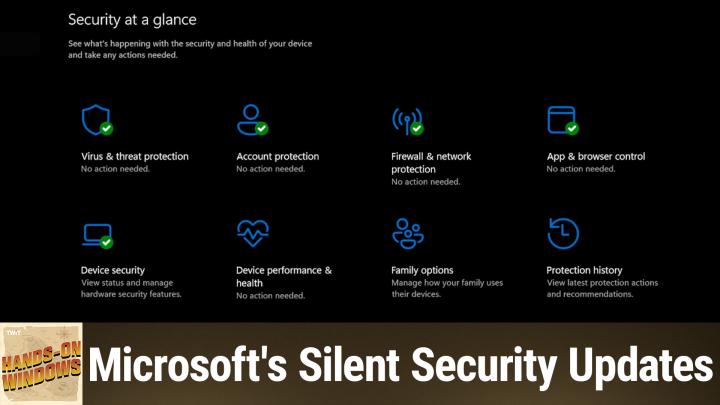
This year we did kind of a security checkup episode. This is a follow up to that. And this is a combination of security features that are built into Windows 11, but for some reason are not enabled by default. And then just a couple of related tips, if that makes sense. And so actually, let me go to the security app here. And so these three features, I believe, are all handled through the security app, right, which is sitting down here in the tray by default in Windows 11. This thing here, in addition to the normal advice about this, which is to just go in and make sure you've got green checks everywhere, as I do here, and if you don't, you can correct those things. There'll be obvious buttons to click and so forth, there are three features in Windows 11, one of which is brand new, and the other two have been around at least a year or two that are not enabled by default.
Paul Thurrott [00:01:20]:
So Windows 11 is obviously pretty secure out of the box, especially if you sign in with Windows hello or Betty at Windows hello ess, if you have a Copilot PC or a PC that supports that. But there are these features, like I said, that are not enabled by default. So let's take a look at those. The first one is Smart App Control. We might have talked about this at one point or another, but in the Security app, if you go into app and browser control, this is going to be the top option here. And on this particular PC, this is off and it can't be turned on again, although technically it can. We'll get to that. But when you first sign into Windows 11, this will be set to evaluation.
Paul Thurrott [00:02:00]:
And what this does is it kind of lurks in the background and it watches the way that you are installing and using apps. And if it finds anything suspicious, maybe you're going to a lot of websites and downloading these kind of older apps that aren't digitally signed or whatever. It will actually just put this on for you. If a couple of weeks or a couple of months go by or whatever the timeframe is, and you haven't done anything suspicious, nothing bad has happened, no malicious Software has occurred. It will actually just turn off. And the weird thing about this particular feature is that, as you can see, this is all grayed out. So I can't actually go back and re enable this. You can Google this.
Paul Thurrott [00:02:37]:
There's actually a registry key you can change that. RE enables this. So if you found out about this feature too late and you have, it's off and there's nothing you can do, actually, you can, you can get it back on. So this particular computer I've been using for some number of months, and so it's just off. I. I've never needed to use it on other computers where I'm doing some Visual Studio software development. I actually trigger this thing. So it's not something about my app, I don't think, but it's just some combination of Visual Studio and my app, which is running in debug mode.
Paul Thurrott [00:03:09]:
And it's just kind of a thing. You'll get a smart app control dialog that says, hey, we're not going to allow that part of the app to run, or maybe that full app in some cases. But for me, it's usually been partial app shutdowns, which is kind of strange. But for most people, this is actually a good feature to turn on. It just keeps a lookout for malicious apps and other untrusted apps. So it's just, it's just a nice little thing to have as a warning if you find it's, you know, happening too much and you know, the apps, you're running a safe, you can just turn it off. Okay, so the second one is ransomware protection. And this one is under virus and threat protection.
Paul Thurrott [00:03:44]:
You can scroll down to the bottom, you can see ransomware protection. And so in this case, Microsoft's primary ransomware protection service, such as it is, is through OneDrive, if you're a consumer. And they, of course, have all the, you know, security and authentication backing for your Microsoft account. So that makes that a pretty good choice. If you're using folder backup, all the files you're using are by nature and by definition protected with ransomware protection. However, you can turn on controlled folder access to give that same type of protection to the files that are in folders and also memory, interestingly, in your computer to give that protection locally on your PC as well. And so you can see this is off by default. I'm not really sure why, but that's something you can turn on.
Paul Thurrott [00:04:33]:
And in my experience, this has never been problematic. So this is, to me is like, smart app control is a good thing to Turn on and just have it be there. I think the reason this is not on by default has to do with privacy. Microsoft always violates your privacy without telling you. But then when you can see that they're using something that might be private, they tend to have a control up and or they don't enable that feature by default for some reason. But this one to me should be enabled and you can do that easily. The next one is one we have talked about and this one is called Administrative protection. This is going to be under account protection down here at the bottom.
Paul Thurrott [00:05:11]:
If you don't see this here yet, you'll get it. It's coming. It's going to be part of 24 and 25H2, the latest Windows versions. It's off by default. It is off on this particular computer. This is an even bigger problem than smart app control, especially if you're doing software development. If you're doing anything with Visual Studio or writing apps or whatever you're doing, software development wise, do not enable this. This will be horrible.
Paul Thurrott [00:05:35]:
But the experience is instead of using User Account Control, you're going to get that Windows hello dialogue, which is time consuming and a little tedious and requires extra clicks. It comes on more often too, which isn't too great. But this is because everyone basically runs as an admin user in Windows and Microsoft knows this and has tried to stop it. No one is listening. So they're going to lock down the administrator account and then at some point this will be enabled by default. Today it's not. It's a little dicey today. That might be why.
Paul Thurrott [00:06:08]:
So there'll be transition to that over time. So this next one I can't actually show you because this computer I'm using doesn't have any Windows hello anything. But if you go into accounts in settings and then down to sign in options, you'll see the options here for facial and fingerprint recognition, which like I said, I do not have. So I can't show you what this looks like. But if you've done this, you understand the process. It's a simple enrollment little wizard. In the case of the facial recognition, you know, it draws a square on your face and most people, you go in, you do it, you're done. Same thing with the fingerprint.
Paul Thurrott [00:06:45]:
You do it from different angles. It's like, okay, we got you. But in both cases you can improve recognition. With the facial recognition, this is explicit. They ask you, if you wear glasses, to do once with, once without. If you don't wear glasses or always wear Glasses, you can still do it twice. This will improve the security of this feature. It actually makes it more reliable.
Paul Thurrott [00:07:07]:
You can also do it with the fingerprint. It's not as obvious because when you go back to do it again, it says you can enroll a second finger or a different finger, but you can just enroll the same finger. And if you do that twice or more often, that will actually, in my experience, anyway, improve that reliability as well. And so it's, it's. You're correct to do whatever you have on your computer for Windows Slow. This particular one just has a pin. It just says the keyboard. But you can improve both of those features if you use one of the other ones.
Paul Thurrott [00:07:36]:
So I strongly recommend doing that. Now, this next one, I also can't show you live. It would just be too difficult. But every one of us has done that thing where you have to sign into something on your computer and it says, hey, we're going to send you a code to your phone. And then the code comes up and it's some alphanumeric code. It could be four, it could be eight, could be 12, whatever number of digits. And then you go to the computer, you look at your phone, you type it in. If you connect your phone to.
Paul Thurrott [00:08:05]:
Excuse me, to Phone Link in Windows 11, you will get those notifications on the computer screen as well. Excuse me, I'm trying to find this screenshot of this. Okay, here we go. And let's put that full screen so you can see it. So here what you can see is this OTP code that I got from Amazon on my phone. And the nice thing about getting it on your computer is that you get this little box down here where you can click it to copy it to the clipboard. So once you do that, it says it's copied. Now you go to the website you're going to sign into, and all you have to do is paste it in.
Paul Thurrott [00:08:38]:
So it's similar how it might work if you were just on your phone and you needed to do this. But now if you have to do it on your computer, you can do this without having to manually type it in or, you know, whatever process you might go through. This is not a particularly big code, but it's still kind of a handy nice thing. And this one is automatic. I'm sure there's a feature or an option in the Phone link app where you could maybe disable that or maybe you have to turn it on to begin with, but that's an automatic thing. You'll get those notifications for your phone so that's actually pretty handy. So beyond those things, you know, there's everything we talked about before still applies, right? Mostly you want to go with the default settings. That is especially true for things like signing in with a Microsoft account for all of the obvious reasons.
Paul Thurrott [00:09:24]:
There's securing your web browser, especially if you're using Edge, doing all of the account protections. If you have Windows, hello, Windows, hello, ess. Make sure you're using the biometric options that are available to you on that computer. We talked about all the app protections that most people don't know anything about or even look at. And you can go in here and determine, say, where you can get apps from. And if you get an app that's not from the store, but it is in the store, it can tell you that and you can get the better version app, that kind of stuff. And then just the data protection stuff, which is, you know, disk encryption, which is on by default if you sign up with a Microsoft account, may or may not have an interface to manage that through BitLocker. But that depends on which version of Windows 11 you have.
Paul Thurrott [00:10:11]:
So those all still apply, but we've got those three newish features. One of them is brand new. And then just some basic tips about some existing features. These are just things that I don't know why it's not like this by default, but you can make that fix yourself and then have a more secure version of Windows. So there you go. Hopefully this was useful. We will be back each Thursday with a new episode of Hands on Windows. Thank you so much for watching.
Paul Thurrott [00:10:36]:
Thank you especially to our Club Twit members. We love you. And if you're not a subscriber, please check out the subscription. You can find more at TWiT TV ClubTV. And you can find out more about Hands on Windows also@twit tv.ho thank you, Channel.