Hands-On Windows 161 transcript
Please be advised this transcript is AI-generated and may not be word for word. Time codes refer to the approximate times in the ad-supported version of the show.
Paul Thurrott [00:00:00]:
Coming up next on Hands on Windows, we're going to take a look at how Google is trying to out Copilot. Copilot in Windows podcasts you love from people you trust. This is Twit. Hello, everybody, and welcome back to Hands on Windows. I'm Paul Perratt and this week we're gonna take a little sidetrack. So we've talked a lot about Copilot this past year. We've talked a lot about new features in Windows 11 of but Microsoft has a lot of competition out there in the AI space and it's really not clear who's going to come out ahead. But we know Microsoft is doing Copilot.
Paul Thurrott [00:00:40]:
They're putting it in Windows 11, they're putting it on mobile, they're putting it in Microsoft 365, they're putting it in everything. Apple is doing Apple Intelligence, you know, not great, but they're getting there. Whatever. I'm sure they'll get there with some help. And Google is doing Gemini. And Gemini is available in Android as the new assistant. It's available Chrome os, it's throughout their ecosystem.
Paul Thurrott [00:01:03]:
Right.
Paul Thurrott [00:01:04]:
And Google is interesting because a, they make the world's most popular web browser by far. They also make the world's most popular search engine by far. These are great ways to distribute and or provide grounding for AI. And so not surprisingly, Google's been doing a pretty good job with Gemini. But they are. Let me think about this before I say it. Yeah, pretty much. I would say the first major incursion of AI from another platform maker into Windows or any other platform.
Paul Thurrott [00:01:35]:
Right.
Paul Thurrott [00:01:36]:
And they're doing this through two different ways. The first one is something that just came out right before I recorded this episode. So I don't really. I haven't had a lot of opportunity to try it yet, but there is a Google app that's available in Google Labs. So if you go to labs.google.com you will find this. In fact, I think it's slash search will get you there. They're going to cut it off at some point. So it's probable by the time you get this, if you have or see this episode, if you haven't done it yet, it might not be available, at least temporarily.
Paul Thurrott [00:02:07]:
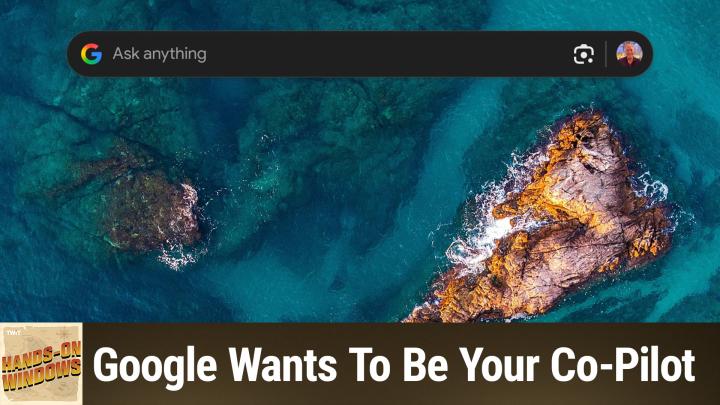
But what this does is provide this search bar on Windows, right on the desktop, right over everything else you're doing. Similar to Spotlight Search on the Mac, which is the inspiration for lots and lots of things in the Windows space. What this reminds me of is PowerToys Run or the new command palette in PowerToys Copilot as well. So Copilot in Windows there's a Windows key +W. Nope, that's not it. Windows key +. I'll get there eventually. Windows key +.
Paul Thurrott [00:02:40]:
Try that one more time. Windows key +C should bring up Copilot and it's not so. Okay, but it should. But also alt space, right? And alt space is the keyboard shortcut for a lot of these tools. They all override each other. On the Mac it's command space. Right. That's why it is that keyboard combination.
Paul Thurrott [00:03:03]:
So by default Google uses alt space as well. You can change that if you want. And what this does is give you access to Google Search from the desktop. It can search your files locally, so there's some indexing going on there and I would hope some semantic search functionality as well. You can search your Google Drive up in the cloud. You can see what's on your desktop using this Google Lens icon. So that is very much like Copilot vision.
Paul Thurrott [00:03:27]:
Right.
Paul Thurrott [00:03:28]:
And so this is kind of a like an in place replacement, if you will, for Copilot. Potentially interesting. This also looks like that search box you see like on a Pixel or an Android phone. So this is very interesting to me. I haven't had, like I said, I haven't had a lot of time. I wanted to throw this out today just because this just happened and it's, it's very interesting. So probably I will say in a future episode we will look at that further, but in the meantime we can look at what they're doing with Chrome. And so a couple of months back as I record this, Google added this little Gemini button up here to Chrome.
Paul Thurrott [00:04:07]:
And let's put this in dark mode so it's not blowing my eyeballs out. But this was only available if you had a paid Google AI Pro or whatever the other subscriptions are called. Membership.
Paul Thurrott [00:04:19]:
Right.
Paul Thurrott [00:04:20]:
Recently though, the latest version of Gemini of Chrome, when I record this, they've made this available to everyone. And so there were limits. But Google has a nice help doc that explains how many things you can do per month with the free version versus the various paid versions. It's actually pretty generous. So this works a lot like Copilot mode in Explorer in Microsoft Edge. You know, you click it, you get this little chat box, you know, by default it will look at the tab that you're looking at so you could say something like, you know, summarize this page kind of thing and it will do what all of these things do and let me bring that thing down and I Guess I'm arguing something here. But anyway, it doesn't matter. It's, you know, it's just kind of a handy in browser summary.
Paul Thurrott [00:05:13]:
It's exactly what it sounds like.
Paul Thurrott [00:05:14]:
Right.
Paul Thurrott [00:05:14]:
And so instead of doing a side pane, which is kind of the old way of doing this, and you know, Microsoft again has changed Edge to work similarly, they have this thing. The nice thing about this one though is you can move it around and that's something you can't actually do yet with Edge and their little copilot, you know, quick, you know, whatever it's called a little quick interface here. The other thing that's interesting about that is let's see if it works by default. No, I got away G. No, it's doing the. Yeah, I have a. The game bar also uses Windows key +G. So let me see.
Paul Thurrott [00:05:49]:
I'll try one more time. Yeah, no, there you go.
Paul Thurrott [00:05:52]:
All right.
Paul Thurrott [00:05:52]:
So you can bring this up at any time. You don't have to be looking at a web page, right? So if you just want to chat with Gemini and whatever it is, you're asking a question, you want to, you know, whatever it might be, you wanted to create some content, whatever, you can just bring this thing up at any time. You don't have to be in Chrome.
Paul Thurrott [00:06:09]:
Right.
Paul Thurrott [00:06:09]:
Which I think is also a little bit of an incursion right into the underlying platform. You know, Chrome obviously has to be running somewhere. It is in fact literally running, but it could be running in the background. And if I close Chrome, this thing will still be sitting here, which is this little guy here. So I think that's pretty cool.
Leo Laporte [00:06:28]:
Hi there. Leo laporte here. I just wanted to let you know about some of the other shows we do on this network you probably already know about. This Weekend Tech. Every Sunday, I bring together some of the top journalists in the tech field to talk about the tech stories. It's a wonderful chance for you to keep up on what's going on with tech, plus be entertained by some very bright and fun minds. I hope you'll tune in every Sunday for this Week in Tech. Just go to your favorite podcast client and subscribe.
Leo Laporte [00:06:56]:
This Week in Tech from the Twit Network.
Paul Thurrott [00:06:58]:
Thank you.
Paul Thurrott [00:07:00]:
There are going to be additional features coming to this thing over time. It's also limited to us in Canada, I believe right now in English, it's consumer only, but it will be coming to workspace customers. So people pay for, you know, custom domain, have a business account, and it's going to work across multiple tabs. It's going to let you Compare and summarize, etc. Etc. One of the things I can show you, I believe because it's not all completely there, but if I go to Amazon and I am signed in, but I don't think that really matters and I'll just search for like a smart speaker because we were doing this before in a previous episode. So I could bring up this smart speaker. They're also adding in addition to this box which I could bring down and ask it questions about this thing.
Paul Thurrott [00:07:49]:
Obviously they're adding it to what Google calls the omnibox, right. The address bar as we think of it. And so when you click here, what you're going to see are you can start typing a question. So you could just do that and this is the little prompt for that. But if you just type, type a question here, it will assume you are asking it about this thing. But it also gives you some suggestions, right? And so you can like to select one like I did and what it will do is analyze the page and then via a sidebar, interestingly not the little dropdown they're going to give you that information.
Paul Thurrott [00:08:26]:
Right.
Paul Thurrott [00:08:27]:
And so this is maybe not as radical as some of the AI powered browsers we see like Perplexity Comet or the, the browser companies DIA and but it's also the world's most popular browser, right? So Google building this stuff in is, was inevitable but now it's kind of finally happening. So it's interesting they're going to be adding agentic capabilities and what that means is you'll be able to type this thing or bring this thing down, start a new chat and say hey, I need to book a haircut or I need to order groceries. And it's going to understand because you're a Google customer and it has your, you know, your calendar, information, Gmail, etc, etc that it can find out, oh, it looks like you went to this place before to get your haircut. Did you want to create a, or make a reservation for that place, that kind of thing. So that's coming as are additional features for the omnibox, right? Longer questions, more complex questions, AI mode.
Paul Thurrott [00:09:28]:
Right.
Paul Thurrott [00:09:28]:
And so I'm going to try to think of a complex thing because I do a lot of like programming things. So if I have like a winui3 actually I did one earlier, I'll just do this. This is a horrible complex topic. It never works great. Actually let me get rid of the sidebar and do that again because I want to show you how that pops down. Oh it's just doing it there, actually. That's new. So that's kind of interesting.
Paul Thurrott [00:09:54]:
What this will do eventually is bring you to a Google search result, right? And so let me see if one of these is one of those. I guess not. What does that look like? No, I don't want to do it that way. But what that means is that you will get that AI summary at the top, which, if you're a programmer doing that kind of technical thing, I'm just trying to see if there's anything in there that's related, but there isn't. Let's do a Google search. This will work from the dropdown, but I just want you to see what it looks like. So I'll just do that same thing again. So what you get here is this AI overview.
Paul Thurrott [00:10:35]:
And eventually what this is going to turn into is this thing, which is AI mode. So when you go into AI mode, this is a different style of search. It's using that AI backend. It's doing kind of a more complex, deeper analysis. It's showing you the sites that it got this information from, which I assume is mostly stack overflow. It doesn't really matter. But eventually this is going to come right to the Omnibox. So that drop down is going to have that information right there.
Paul Thurrott [00:10:59]:
You're not going to have to go to the. To the page. And that's interesting because you might be doing something on the web at the time. You don't want to go away from it, you don't want to have to open a new tab or whatever, it will just do it over it and then you can click through and do it that way. So kind of interesting. So there's more, like I said, there's a lot more coming as we record this. It's kind of basic first steps, but if you're familiar with Google and Chrome and Gemini may know that there's a version of the Gemini AI model family called Gemini Nano that Google puts on their phones. On the Pixel phones, there's also a version of Nano that goes inside of Chrome and that's what powers the safe browsing enhanced protection mode.
Paul Thurrott [00:11:43]:
Right. So if you are visiting a website today and it's a scammy thing, it's trying to get you to, you know, sign up for service or something or pay for software to fix a problem that you don't even have, that will actually stop that. So they've added like scam notifications. It will actually pop up and say, hey, this thing is a scam. Do not do this, don't click on it. If you do try to download it, it will prevent you from doing that. So there's some kind of interesting stuff going on here. And you know, like I said, putting this stuff in Edge is fine.
Paul Thurrott [00:12:12]:
If you do use Edge, the Microsoft stuff isn't too bad. But putting this in Chrome is actually a really big deal, I think because it's just, you know, 65, 70% of the web.
Paul Thurrott [00:12:22]:
Right.
Paul Thurrott [00:12:22]:
I mean this is what most people use. So Google obviously has strong presence in search, strong presence and AI and this kind of brings it all together into their, you know, the most used browser that there is. So we'll probably be looking at this again. We'll definitely look at other AI powered browsers. That's a big thing right now. So we'll get back to it. I'm sure Microsoft will have some kind of response and it probably won't be anything that they could do to Android or whatever, but you know, we'll see what happens there. So this is an interesting option I.
Paul Thurrott [00:12:54]:
Think, for, for people.
Paul Thurrott [00:12:55]:
So hopefully, hopefully you found that useful. We will have a new episode of Hands on Windows every Thursday. You can find out more at TWIT tv. H O W thank you so much for watching. Thank you especially to our Club Twit members. We love you. And if you are not a member of Club Twit, check that out @Twit TV Clubt Twitter.