Hands-On Windows 206 Transcript
Please be advised that this transcript is AI-generated and may not be word-for-word. Time codes refer to the approximate times in the ad-free version of the show.
Paul Thurrott [00:00:00]:
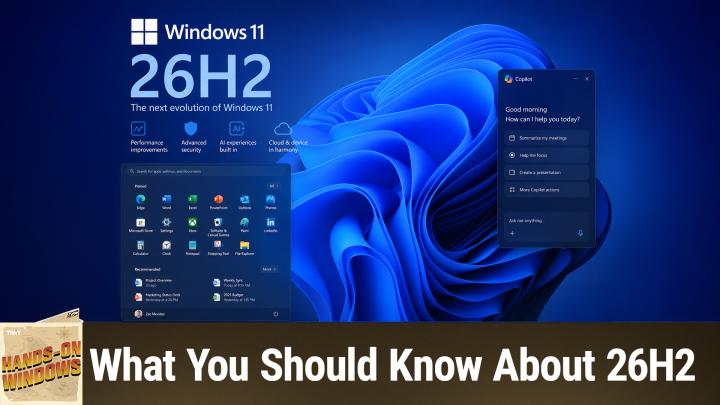
Coming up next on Hands On Windows, we're going to take a look at the next version of Windows 11, 26H2. Podcasts you love. From people you trust. This is TWiT. Hello everybody, and welcome back to Hands On Windows. I'm Paul Theriault, and this week we're going to look at the next version of Windows 11, 26H2, which arguably we've been kind of looking at all year. Um, I was going to do this roundup anyway because as I record this, it's what's typically Week D, in this case for August 2026, which is, uh, normally when Microsoft releases a preview update of the next Patch Tuesday, uh, set of updates. And I figured that this was going to be the thing that Microsoft will call 26H2.
Paul Thurrott [00:00:53]:
But it didn't happen. And a couple of days went by and then they made an announcement. So just coincidentally today, I was going to record this episode anyway, but Microsoft announced how they're going to, or at least part of how they're going to deliver 26H2. And they're doing it differently than they've ever done it before because they have to keep everybody on their toes, I guess. And so what they did today, instead of releasing it to Windows Update to everybody as a preview update, they released it to the Release Preview Channel. Of the Windows Insider Program. So again, this is not the way things usually go, but this also corresponds to the schedule as I sort of expected it to go anyway, which was that in September we'll most likely get that preview update of 26H2, which you'll get if you have Windows 11 version 24H2 or 25H2. And then in October, we'll probably get the general stable release or whatever.
Paul Thurrott [00:01:47]:
So Just kind of an interesting coincidence there. So we've already talked about most of this, right? I mean, we've, we've done episodes over time. There's the new Start menu, of which this is not the entire new Start menu because of the way Microsoft does things, which is so strange. But when you go into the Settings app here, let me just maximize this. There will be— there aren't here yet, but 3 top-level sections where you can actually Um, turn on or off all of these sections. So there's the pin section at the top, which we've always had expandable, contractible. Um, this is changing to recent, but same basic functionality. And then this kind of grid-based, uh, design at the bottom, which they added sometime earlier this year.
Paul Thurrott [00:02:31]:
And you can determine how that looks, um, if you'd like, or just turn it off entirely in settings, right? But the default is this kind of iPhone library, app library. Um, style UI, which I think is completely useless, but, um, strong recommend, uh, leave it on this grid view instead. But okay, so that's fine. Um, the biggest one to me is the taskbar, and this is something we did do an episode on. Uh, and I think I did an update, um, to that in the following episode because I discovered another little feature in there. But, um, there has been one change since then, which is that they, they fixed the way that the smaller taskbar works, right? And so This is the UI where you can determine which side of the screen the taskbar will appear on. They now have this new taskbar size option, which I set to smaller, which— small, which I just prefer. But the default is the normal size.
Paul Thurrott [00:03:23]:
And then remember before there was this option down here, and it's still there. I was kind of expecting this to go away, but they will automatically use smaller icons regardless of what the size of the taskbar is if The taskbar fills up. So that's actually something that was there before, but that's, uh, that doesn't change too, too much. Um, you can hide the taskbar as before, but only if it's on the bottom. And we went through this, right? You can move this thing around and, uh, depending on how you do grouping, you can get a kind of an expanded view, uh, and all that stuff. But this is all pretty straightforward. And, um, you know, again, something we did talk about before, but I, to me, this is kind of a cool thing. I don't really care about moving this the taskbar around, but I love being able to make it smaller.
Paul Thurrott [00:04:05]:
Let me just move that back over where it was. Okay. And Windows Search. So this one is actually really cool. I'm going to do the keyboard shortcut because I'm hiding the control here on the taskbar, but Windows key plus S brings up Windows Search. Now this looks nothing like the way this thing used to look, right? Because this used to have search highlights here by default. Now it's this really streamlined minimalist kind of view. You can search from here by typing.
Paul Thurrott [00:04:31]:
I'll just type in Windows 11 or whatever. And I can filter as before, so I can see documents. These are all Word documents from a million years ago for some reason, but pretty quick. That's fine. If you go into search settings, one thing that's new in here is that you can now disable a couple things very easily that you couldn't do before, like web search. You could say, well, I don't want to— I'm not searching the web, I'm not searching the store. And if I bring this up again, of course, recent searches are things I typed in that are not from the store. These are just apps that I have installed.
Paul Thurrott [00:05:03]:
But again, um, type in Windows 11, um, and it works as before. And then the filters are different, right? Because I'm not doing those types of searches. I turn that thing off here. I didn't see a way to turn search highlights back on, which is kind of interesting. Um, maybe I'm missing it, but, um, I, I'm delighted to see it to be gone in the first place. The fact that you can't even bring it back is kind of interesting. Um, but mostly this is the same as it was before. Um, Windows Search should be faster.
Paul Thurrott [00:05:31]:
Um, you know, that's kind of hit or miss in my, uh, experience so far. But, you know, as I type, this is going across the file system. It's pretty good. Um, these are going to be more recent files, most likely. Um, if you look at the settings here, it is going to search in OneDrive, right? And I do have a bunch of stuff in OneDrive dating back decades, but, um, You know, I found almost 7,500 items already, so that's pretty good actually. I would say, you know, Windows Search hasn't been very good for a long, long time, so that's kind of neat. Um, Windows Update, that was maybe the first of the big changes that Microsoft implemented first, and there have been some updates since then as well, uh, interestingly. And I can't show you one because I've just installed everything.
Paul Thurrott [00:06:18]:
I just installed the build, but The big one, the one we have talked about, is this date picker. So kind of a calendar control here where you can effectively— actually, I am going to be able to show you. So let me show you this real quick because it came up. So when there are preview updates or optional updates, you'll actually see this available updates interface here at the top, and it's collapsed the way it is. You see it right here. When you expand it, you'll see what's in there. Now, this is not very interesting. It's just a Defender antivirus signature update, but you know, the Windows 11 version 26H2 was in here earlier today.
Paul Thurrott [00:06:54]:
You might see things like firmware updates for your PC, driver updates, etc. These were things you used to have to go into here to find some of these things, but now they actually push that up to the top. So it's actually kind of cool. I like the way they do this now. It also prevents people from maybe accidentally installing something by mistake. You know, if they're not— maybe they have this switch off and they're not trying to just install everything as it pops up. Um, you know, they hide it under that collapsed interface, which I kind of like. So that's, that's, that's pretty cool.
Paul Thurrott [00:07:25]:
But again, uh, the calendar. And so you can go out, uh, X number of weeks, doesn't really matter, and, um, pause updates. And then as the days go on, you can keep pausing and keep pausing. There's no effective end date. The, the issue there is going to be there'll be some zero-day security vulnerability or whatever it might be, and you're going to have to install that thing and reboot. So If you want to push that back as much as possible, this is actually a simpler interface. And technically, unless there's something really serious, which, you know, there will be, you can kind of push it back forever if you want. Some of the other things we've talked about, point-in-time restore, which is not, you know, any better per se.
Paul Thurrott [00:08:08]:
You may recall that when you bring this thing up, you really have just these 2 options you can configure. You can turn it off, right? Or turn it on if it's not on. You can determine how much disk space these restore points can take up. And you— I don't know why they even show you this, but you can see that it, in my case, it has taken a restore point not quite every day. It's supposed to do this every day. You can't click on any of these to restore them. You actually have to boot into the Windows Recovery Environment, which is fairly complex. And curiously, they don't give you a way to do that here.
Paul Thurrott [00:08:39]:
But I do expect that UI to appear over time. So what's changed in 26H2 here is that now this thing will be enabled by default. In 25H2, previous versions of Windows, once this feature arrived, it was off by default. So you had to turn it on, then it would start doing the, the re— uh, the restore point. So now it's going to be enabled by default. So big change, but, um, kind of interesting. Um, a couple of things I can't show you because again, the way Microsoft updates Windows, some of these things are CFRs. I just got this thing today.
Paul Thurrott [00:09:08]:
I don't have all of the new stuff yet, but they're changing the way that context menus work in Windows. That's kind of— that's great. I have 3 screens here and they all have different sizes and dots, you know, dense pixel densities and resolution. So it's kind of screwy. Some of the interfaces you're going to see today are a little strange looking, but if you're familiar with how this works now, you can right-click on a file and you get this kind of modern UI. It's, it's starting to pad out, you know, when Windows 11 first came out, they really cut down on what you see here. But all the stuff you see here down at the bottom, this AI Action submenu, is all stuff that Microsoft has added over time. So a lot of people have complained about this, and they are making what seems to be— I've not seen it yet, but this looks like it's going to be a pretty good update.
Paul Thurrott [00:10:02]:
So this is just a shot of it. This is what Microsoft provided. So going back to a smaller design, a shorter menu, More submenus, right? So App Extensions is going to be a new submenu for apps that add themselves to the context menu in Windows 11. There's 2 levels of that, oddly, because you've— there's the old way of doing it. Um, you know, if you're— let me bring up the, um, uh, this thing here. You might be familiar with this where you right-click and you don't see the option you want here, but if you go to Show More Options, you get the The old Windows 10 style menu, which has more things in it, right? If the app is modern and it does extend the modern context menu, that stuff will now appear in here, right? But the bigger— well, not bigger, but this is, this is pretty big. I mean, it's, you know, nice to see simplification. But the big deal, I think, is this settings page, which is going to allow you to determine what appears in this menu finally, right? So this is something Microsoft has never offered a UI for.
Paul Thurrott [00:11:04]:
Or at least not in the modern era. And, um, there were ways to get into the registry and to kind of change some of this stuff. But this is actually, this is, this is something I'm, I'm actually very excited to see. So, uh, this should be available by the time, um, 26H2 hits in September, October timeframe. Um, there is also a, uh, a new autoplay dialog coming. So I'm going to plug in a USB key here if I can figure out where the port is. This thing. And, um, if you've done this before, you've probably seen this, right? So you get this, um, auto, uh, autoplay dialog.
Paul Thurrott [00:11:39]:
And when you click it, you get this weird UI up here. And so what is this thing? Well, this thing dates back to Windows 8, right? And the point then was you could have your fingers up on the sides of the screen and get to that easily. But as Windows 8 became 10, became 11, you know, there's been, uh, what is that, 14 years of updates? This thing has just sat here unchanged. And one of the fun things that Microsoft is doing this year is actually looking at these UIs and touching them and fixing them so that they'd look modern and, and normal, right? So I'll just get rid of that. But, um, I don't, I don't have it, uh, on this computer, but I do have the shot that Microsoft provided. So this will be a standard, what they call WinUI or WinUI 3, uh, dialog, modern looking, centered in the middle of the screen normally. Um, the other big deal is that if you miss this for some reason, right, because these things time out. Um, this, a notification with this information on it will appear in the notification center, which is this thing over here, right? So, uh, notifications all appear in here.
Paul Thurrott [00:12:38]:
This is how they're supposed to appear. The autoplay notification, if it disappeared, or as of today, if it disappears, does not appear over here, but now it will. So that's actually, that's also a very nice improvement. Um, very, very good to see. And since I'm doing the shot thing, let me just bring this one up. You might not have used this one too much, but this is run dialog. Uh, this is the way, uh, well, if you know an explicit command and you get it exactly right, you can use this. There are actually better ways to do this now, but this is kind of a legacy tool, uh, that still exists in Windows.
Paul Thurrott [00:13:11]:
I use it to bring up this WinVer dialog, the About Windows dialog, and you can see here it's 26H2. Um, but this thing has not— this is a Windows Vista slash Windows 7 era user interface. Um, it doesn't have anything to do with dark mode. I'm in dark mode here. It doesn't know anything about that. And so what Microsoft is doing is modernizing that thing as well. So this one's kind of small, but you get the idea. So same basic— I think I can bring that up.
Paul Thurrott [00:13:38]:
Yeah. So same icon, but a streamlined WinUI 3 style interface. So nice. So that's cool. I like the fit and finish stuff. This is the type of work I never frankly expected Microsoft to ever do. So it's actually kind of nice. We've talked about things like administrative protection, which you're going to hate, but it's optional.
Paul Thurrott [00:13:56]:
It will be in 26H2. It's just an additional level of protection on top of User Account Control and whatever security controls are built into Windows 11. So most of us sign in as an administrator. What this does is basically run everything that you do as a standard user, and then if it needs to escalate, you do a Windows Hello authentication, which is the annoying part because it takes a long time, and then you give it your permission, and you can do that task with administrative privileges. So Most people will try it if they want to have better security and will hate it and they'll turn it off. But, you know, we'll see how that goes. So Microsoft removed a bunch of the kind of Copilot— I'm going to call them Copilot entry points, really just icons, right? And so, you know, here there used to be a Copilot icon. Oddly, in Paint, they left it, right? So for whatever reason, in Microsoft Paint here, there's still a Copilot icon and then whatever options you get depending on the type of PC you have.
Paul Thurrott [00:14:56]:
But in Notepad, they got rid of it, right? And so the tools are all still there. These writing tools still exist. They work just like they did before, but they don't, you know, the offensive Copilot icon is gone. Separate from Windows 11 26H2, Microsoft also announced that they were going to combine the Microsoft 365 Copilot and consumer Copilot apps into a single super app. That probably won't be available with 26H2, but it's something that will come down the pike. We did an episode about Copilot, I don't know, a month or two ago, but that will be changing to some degree. I think I already went through some of the things that are actually going to be in it, which includes some features that are going away. But, you know, we'll look at that again as it comes up.
Paul Thurrott [00:15:39]:
They improved the Windows Insider Program. I probably should have air quoted that because it's still kind of complex. But there is this new interface now in here, which is actually kind of nice. And this is where you can, you can see, I, I signed up for the release preview this morning specifically so I could get this build on this computer. It is, uh, 25/26H2. By the time 26H2 comes out, 24H2 will go out of support. So that's why you don't see that here. But if you're running 24H2 as I record this or into October or whatever, um, you will be offered the 26H2 upgrades.
Paul Thurrott [00:16:15]:
That's fine. Um, there's also this thing, 26H1. I think we talked about this. This is the Snapdragon X2. based computers that have come out this year running Windows 11 on ARM. They will not be upgradable to 26H2. 26H2, 25H2, and 24H2 were all in the same kind of code base, if that makes sense. 24H2 was a major update that required a long reboot and a big install.
Paul Thurrott [00:16:41]:
25 and 26H2 are what's called enablement packages. So it's the same code base. The compatibility is 100% the same. Uh, it's a very quick reboot and install process. It's nice, but this is again another codebase. So my expectation is we're going to see a, either a 27H1 or 27H2 that will kind of combine these all into one thing. But for now, 26H2, uh, sorry, 26H1 is all on its own. But, um, yeah, so a little confusing, but that's okay.
Paul Thurrott [00:17:13]:
And the other addition is a subtraction. I don't remember if we talked about this and I can't show it to you because now it's gone, but you've seen this thing here, right? So this is the snap feature where you drag a window to the top of the screen and you get this pane that comes down and it lets you choose from what's in there. Up until fairly recently, you could do this with a file. And if you drag that to the top, you'd get something called the drag tray or the drop tray, depending on where we were in time. It gave you a set of icons you could drop it onto and then share with that app or however you did that. Um, it, it really wasn't much of an, uh, a change over this standard share window. I guess it's maybe a little more discoverable. It's kind of hard to say, but, um, they're just— so many people complained about it, they just decided to go with this.
Paul Thurrott [00:18:05]:
So Um, they dropped it. So actually that's good because I, you know, the, that snap feature I just showed you and also the drag slash drop tray feature, I, those are things I disable on my computer. I find them to be incredibly annoying. So that's most of it. Um, the one thing that maybe is not obvious that we should probably highlight here is that, um, 20, whether it's 24H2, 25H2 today, or 26H2 and 25H2 starting in say October or whatever it is. The features are the same in every version of Windows. So it's, it's not a big bang release in the sense that, oh, you have to get this new version of Windows to get the Start menu and the taskbar and the Windows Search and whatever else is new in this release, because those things are actually new in all supported versions of Windows. So even 26H1 will get those things.
Paul Thurrott [00:18:53]:
It doesn't get it at exactly the same time. It's kind of been about a month behind on the new features. So we'll see what happens with that stuff in 26H1. But As far as 26H2 goes, this is the point at which the support timeline kind of switches over, right? So, um, you should have no problems if you're running 24, 25H2 getting it. Um, it will, should work. It will work the same. Uh, the features will be the same. It's not like all the things I just showed you, uh, and some of the stuff I didn't show you, um, are going to just magically enable in October or whenever this thing comes out.
Paul Thurrott [00:19:26]:
But, um, this is just a, it's, it's really like a support milestone mostly, but you'll see it, you'll notice it, it will happen. But I mean, the day-to-day experience will pretty much be the same as it's ever been. So there you go. I think that's most of it. You know, going forward, there's going to be more. I mean, Microsoft's doing more fit and finish work. I touched on a couple of things, but there's a lot more of that, more features coming, that Copilot Super App, et cetera, et cetera. So there's always, always more, but it was kind of interesting coincidence today.
Paul Thurrott [00:19:57]:
So 26H2 is now officially on the way. And perhaps by the time you see this, you will be able to get it yourself as well. Alrighty, well, thank you so much for watching. We have a new episode of Hands on Windows every Thursday. You can learn more about this podcast at twit.tv/how. Thank you to everyone who's watching, but thank you especially to our Club Twit members. Thank you.