iOS Today 801 Transcript
Please be advised that this transcript is AI-generated and may not be word-for-word. Time codes refer to the approximate times in the ad-free version of the show.
Mikah Sargent [00:00:00]:
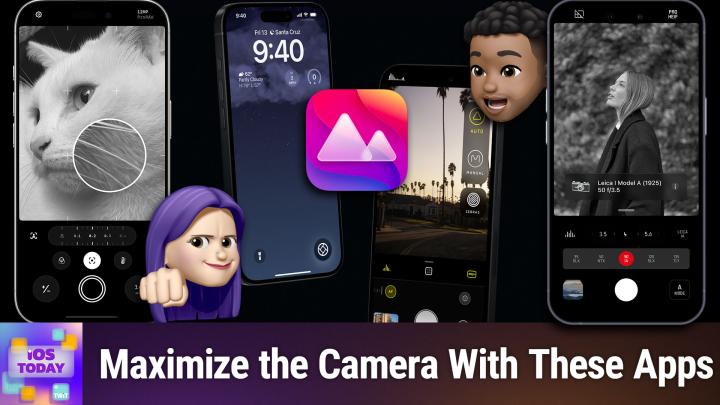
Coming up on iOS today, Rosemary Orchard and I, Micah Sargent, talk about some of the third party camera apps you should be checking out. Stay tuned. Podcasts you love from people you trust. This is twit. This is iOS Today episode 801 with Rosemary Orchard and me, Micah Sargent. Recorded Tuesday, April 28, 2026 for Thursday, May 7, 2026. Take a shot with camera apps. Hello and welcome to iOS today.
Mikah Sargent [00:00:41]:
This of course, is the show where we help you make the most of your wonderful Apple devices by telling you about apps, features, settings and all the things you should know about them. I am one of your hosts. My name is Micah Sargent.
Rosemary Orchard [00:01:00]:
And my name is Rosemary Orchard. And I'm very excited to be here. You know, all you have to do is just frame it right and then suddenly you'll be able to use your device so much more powerfully.
Mikah Sargent [00:01:09]:
Indubitably, in fact, Let us go ahead and get rolling with our kind of picks here. Now, when it comes to the camera, you of course have your built in default camera and that camera app can do quite a bit. But over time, Apple, while adding new features, new settings, new controls, has arguably, I feel, sort of taken away or buried some of the options that you have to go deeper with the camera controls. And it is a good thing to that there's such a robust third party marketplace for cameras because those apps are doing more and giving you more control, more availability. And you know, there's this show, it's an HBO show if I remember correctly, but it's called the Comeback and it's starring Lisa Kudrow. And this is a show that it's a meta show and it's better. Meta as in self referential, not meta as in the company that owns Facebook. In any case, it is a show that has had sort of generational seasons.
Mikah Sargent [00:02:33]:
But what's funny is that in this new season, the one of the people that's that's running her social media team is documenting the stuff that she's doing. And you, if you're watching it, will note that the app that the person is using for the photo and videography is not the stock camera app, but instead is a third party app that has more information available that would be needed for someone who works in, you know, video. And I found that as a funny little Easter egg, so to speak, that it wasn't just let's pop open the camera app and go from there. It's like, no, this stuff puts in time codes and makes sure that this footage can be used by actual video editors and I thought that was clever. But one of the apps that I want to talk about today is one that has been around for a while, and in fact, one of the apps that I mentioned on our 800th episode, and that is Halide. Now, Halide is an app that is made by the folks at Lux Optics, Inc. And it is a camera that has quite a few Pro features built in. It has been an editor's choice in the past.
Mikah Sargent [00:03:50]:
It is regularly featured because of the fact that the company will make sure that new features and new options that are available from iOS that Apple has sort of made available to developers are among the first that Halide supports. So within the app, you have your basic controls. Okay, so let's say I've got this little fidget toy here. And what I am seeing sort of on this main screen are a few options that I have. I've got my autofocus, I've got, of course, the shutter button, but I can go through and make some adjustments to this. First and foremost, look, we've got a beautiful histogram. So I can see how the lighting is looking. I also have the ability to change the grid pattern.
Mikah Sargent [00:04:49]:
I can, of course, switch the camera, change whether flash is enabled or disabled. I can change the type of processing that takes place with this photo, including what's called Process zero, Apple Processed, and Apple Pro Raw. Now, with Apple Processed, it is a photo that has gone through Apple's image pipeline. Apple Pro Raw is a photo that has gone through a special image pipeline. But the Process Zero photo is as close to the bare metal as you can get. There's a timer right in the middle. You can change whether the white balance is automatically selected or is adjusted based on the value that you set. And so this case, we'll switch that back to Auto white balance.
Mikah Sargent [00:05:35]:
We can change the focus very easily as well. Set it up in a macro mode and check that out. We're able to focus in on this. There we go. Look at that focus peaking. We love to see it. And then we can take this photo of a little fidget cube. And what is also part of this experience.
Mikah Sargent [00:05:58]:
What I love is that you are able to learn a lot about your phone's camera. I can see all of the cameras and all of the information from this technical readout here, including the min and max exposure. The full image size, 8064 by 6048 pixels. What autofocus focus system is used for the telephoto camera? What size? Okay, same size. That's good to know. For the Ultra wide camera, the focal length of that lens. I can also see the front camera and the front ultra wide camera. I just love having the technical readout information and then of course also being able to adjust the different methods for image processing.
Mikah Sargent [00:06:50]:
So I have right now process zero set up, which means that it's not doing AI image adjustments as it moves through the pipeline. Apple Processed does that and Apple Proraw gives you the ability to essentially get that same image, but also with more data added on top of it. There's a lot that you can do to improve upon or make adjustments to the way that the photo is taken. But even just that ability that you saw there to change the focus and use focus peaking already takes it past the default option that's available in Apple's own camera app. Halide is available in the App Store with in app purchases. For the full version it's $9.99 a month, $19.99 a year, or a one time purchase of $60. And again, it's an incredibly well designed and powerful camera app that I think anyone should give a go and see if you want to add it to your toolkit. All right, tell us about your pick, Rosemary.
Rosemary Orchard [00:08:08]:
So my pick is called Obscure and yes, I have been to a natural camera Obscura. Obscura is not quite the same in that sense, but honestly one of my favorite features in this app is the help menu because it does just tell me how all of the things work that I forget because I did learn photography on a DSLR and since then I kind of switched to just using my iPhone and Auto mode in Obscura or in the native camera app gets it right for me the vast majority of the time. So what I really love about this is there's a whole bunch of things and there is a free trial version of this app as well as the the full paid for version. And the help mode is very good at explaining to you that for example, the portrait photo mode is a paid for feature because it's got that little seal over to the right. However, auto photo mode is just free. And so there's the two primary modes that most people probably use is auto or manual and auto actually automatically captures all of the different lenses on the back of your device and combines them together to render it. It's. It's a.
Rosemary Orchard [00:09:21]:
They call it a virtual camera. I don't understand exactly what technology they're using. Basically I call it wizardry and just go wow. Every single time. It works because as much as I did love photography with my dslr, the carrying around lenses and, and stuff kind of made me go like, I, I don't love it that much. So I do just love the fact that Obscura just makes it a lot easier. It can explain all of these things to you, like what is focus and how does it, how does it work and things like that. I've also met the creator of Obscura several times called Ben.
Rosemary Orchard [00:09:54]:
Ben is an absolutely lovely person. So I'd recommend downloading the app and giving it a try. Even if you're not sure you need an app, you should also try Halid just because the developers are nice people, Ben in particular, very lovely and yeah, worth, worth having a chat with if you ever run into them in real life. But yeah, there's, there's a whole bunch of explanations here and I'll just. Unfortunately I forgot to get something actually exciting. So I have my AirPods Pro case here and you know, there I can just go ahead, take a picture. I've got the options to adjust the color temperature right here. My white belt.
Rosemary Orchard [00:10:28]:
Sorry, that's white belts. I can also change various things with regarding color and things like that. I could adjust focus and try to pick. You know, I've got. Now I've got two focus points. I've selected it back to just one. Which optical zoom would I like to use? I could use 0.5 ultra wide or I could use 8 and try and zoom in on it. Turns out this is made by esr, which is not something that you really see a normal zoom level.
Rosemary Orchard [00:10:55]:
Then I've also got the plus and the minus options for adjusting how much light I'm allowing into my lens and things like that. And you know, you can change all these things. I have set it up to just be using the free version at the moment because I wanted to show folks what you can get for free. But you know, you don't have to, you know, subscribe to these. I would recommend it if you, if you can afford it because, you know, it's great. And these also do video as well. So. Yeah, I mean, it's really difficult.
Rosemary Orchard [00:11:28]:
I could spend hours talking about Obscura and I would still not cover everything. Which is why the fact that the help is just right there in the top right is just great because it does just let you go. Okay, cool. I need filters. So how do I make drag out from the filter button to select one of my favorite filters? Oh well, there we go. That's nice and easy. I can remember how to do that and it just Makes it nice and easy for you. So yeah, I'd recommend Obscura and also shout out to Ben for being a lovely person as well as a great developer.
Mikah Sargent [00:12:03]:
Indeed. I agree on all accounts, the next app that I want to talk about is actually sort of in a way a companion app to Halide because of the fact that in the Halide app there is a shortcut to access if you have it on your phone. Darkroom. Darkroom is an image editing suite that will let you create the photos that you're after creating. It's a photo organization tool for your photo library. It is an editing tool first and foremost and it does color grading as well. Plus, because of the way the Darkroom is set up, it is that non destructive option where kind of everything, all of the refinements, all of the choices that you make can be added as part of the photo file instead of it needing to be a complete overwrite and reformatting of the photo file. It can also edit video.
Mikah Sargent [00:13:06]:
So it works with portrait photos, it works with raw photos, ProRAW, slow motion video, 4K video, even 8K video. All of those tools are available to you within the app. And on top of color grading, you can do things like setting up special local masks so that you are able to say, okay, I only want to adjust the look and feel of the person and I want to leave the background alone. Being able to change the color profile of a photo and of course that ability to go through and kind of adjust the organization. And whether you use flags or you say yes to this photo, no to that photo, it's got a histogram, it's got clarity tools and as I mentioned, it integrates really well with the Halide app. And so if you've got one, then you can use that with Darkroom to kind of take you to that full experience and be able to use them both. One to capture, one to edit after the fact that anything else that you want to mention for the camera section of the show,
Rosemary Orchard [00:14:29]:
I would like to say Micah. Actually this is one where folks should check out the TIPS app because there's a huge number of things that you can do with the native camera app that people just don't realize. So one of the things that I do and I'm just gonna pop open my camera app here is I have it in photo mode, but I tap and hold on the button and it's recording a video and then I let go and it's recorded a video. That's it. Really simple. Did you know that you could do that. Maybe, maybe not. Did you know you can customize your action button and say what it does? I've got mine set to the different zoom levels.
Rosemary Orchard [00:15:03]:
Sorry if that's making anyone seasick. Um, you can. You can customize a huge number of things with the camera app. So, honestly, you should definitely spend a little bit of time playing with the camera on your iPhone. I know that you can just, you know, point and shoot. There is nothing wrong with just pointing and shooting, but understanding a little bit about cameras, like, what is the difference between optical zoom and digital zoom? By the way, pro tip, the optical zoom is based on the actual physical lenses on the back of your camera. And so that is directly taking a photo, whereas digital zoom is taking the closest one and then, like, stretching it to get closer in. So that's where having all of those pixels on your iPhone comes in really handy and why people buy new iPhones every year.
Mikah Sargent [00:15:49]:
The last one that I want to mention is one that I only recently paid more attention to, and that's because I went on. I did a little photo walk with a friend of mine, and my friend was telling me about the Leica camera that they had and talking about how this camera sort of their process for editing photos, because a lot of photographers will, of course, take a bunch of photos on their camera and then move them to their device and do editing. And I was just curious what my friend's workflow was. And with the Leica camera, they did a lot of that work directly on the camera because you can set up special profiles. It turns out this is what I didn't know that my friend was telling me. Laika had a team of image scientists and film scientists who understood film processes and color and this and that and the other, and assigned them to creating digital versions of. Of the physical. Physical processes that, you know, a Kodak photograph would take or whatever it happened to be.
Mikah Sargent [00:17:19]:
And so, given that Leica has these. These digital profiles that are emulators essentially for film, then the company decided to make a camera app that would also give you access to these tools. So you get the Leica look and feel thanks to those film simulations. But in this case, it's done just on your device. So the camera app itself is going to look a lot like any of the. The, you know, any camera app. That's not the point of it. It is those lens simulations, because Leica has a unique.
Mikah Sargent [00:18:08]:
A unique set of these beautiful, different film simulations that are truly based on physical outcomes from different film and different lenses together. So this is A really cool app to make use of, something that Laika threw a lot of its money behind in the wake of switching from manual analog to the digital experience that we have today. So if you're looking for a way to take advantage of some of the more physical manifestations of photography, this is one of the ways that you can come closest to that while still remaining in the digital realm. So that's Leica Lux in the App Store. As you might imagine, given the fact that Leica is, you know, Leica cameras is kind of expensive. The monthly and annual subscriptions are $70 a year or $7 a month. To be able to use them and make advantage or take advantage of what Leica has to offer, I think it's really cool. And it is one of the apps in my repertoire for whenever I am trying to take moody photos like a Lux in the App Store.
Mikah Sargent [00:19:35]:
Folks, I would love it if you shared with us the camera pics that you have. What is the camera that you're using? If you send us an email iostodaywit tv and you tell me you're just using the Snapchat camera, I'm gonna be a little sad. I'm going to be a little sad. But hey, if that's your choice, that's your choice. And I would. We would love to hear what you're using as your camera app and what makes it special, you know, why? What makes you choose it over the base camera app, the default camera app. So be sure to let us know there. All right.
Mikah Sargent [00:20:09]:
Moving along to the news, there was this article over on 9 to 5 Mac that I think, you know, was. Was well worth a look. Whenever we were kind of putting together this story, Chance Mil wrote an article, never lose anything again with these Find My accessories. And I think that it's worth remembering that Find My is not just a network for tracking your Mac and your iPhone and your iPad and your iPhone, of course, but also a network of other gadgets and gizmos that can either be tracked themselves or help you track other things. So, of course, there's AirTag 2 from Apple, which has better precision, finding a better Bluetooth chip that has a better range and a louder speaker. But Chipolo also makes Find My devices, including the Chipolo Loop and the Chipolo One Spot switchbot makes a little card that you can use to pop into your wallet, and it will help you track things. There's the one pack and four pack. Pebblebee also has different devices, including the Pebblebee Clip and the pebblebee Universal tracking tag.
Mikah Sargent [00:21:24]:
There are also some backpacks that feature tracking and then my favorite is Nomad's tracking Card, which is a QI wireless charging tracking card that you can, that you can again walk onto a wireless charger to charge and then pop it in your wallet. I have the non metal version. So there's the, there's the Find My Tracking Card Pro which is the one that's metal. It's a little bit. That one's thicker than the one that you and I have, which is called now the Find My Tracking Card Carbide. I think that is the one that you, that, that I have. That I believe you have. That is just as great.
Mikah Sargent [00:22:08]:
It's just not as expensive and also it's thinner.
Rosemary Orchard [00:22:11]:
So in my case it being thinner was a big selling point for me because I just didn't want to like. I, I have a fairly small purse wallet for Americans because call them purses over here. The, the bag that you put stuff in is called a handbag. You know, it's a bit of pants in the boot, it's fine. But yeah, I, I have a fairly small pair. So I didn't really want something that was taking up the space of like five cards. I wanted something to take up a space of ideally one card that wasn't going to happen. The Nomad one, that's the Carbide one takes up about the space of two to three credit cards depending on the thickness of your cards.
Rosemary Orchard [00:22:45]:
So yeah, I'm, I'm very happy with it. It works really well. And the big thing that I found, as much as I love the airtags and the features of the airtags is sometimes being able to recharge something is the difference between me having the ability to find it and the ability and not having the ability to find it. So yeah, big fan of things that you can just plug in or pop on a charger.
Mikah Sargent [00:23:05]:
Yeah, very nice. There are also several other items mentioned in this article, but we don't want to spoil all of that. I want you to go and check it out. So check out the show notes for more. But yeah, I just, I think at the time I was looking through and saw this piece and thought, you know what it's worth talking about the fact that Find My is not just for your Apple stuff, but also other developers and manufacturers have added the, the technology to their devices. Moving along from the news, let's head into feedback. And Rosemary, would you like to read this feedback for us?
Rosemary Orchard [00:23:44]:
Yes, I can. So this is a lovely piece of feedback. We Got and it says saw the episode about chill apps come into my feed. A big relaxing app I play is Sky Children of the Light. It's a chill cross platform MMORPG that stands for a massively multiplayer online role playing game for anybody who doesn't know. And that's main focus is exploration and making friends. And this is from Matos. I'm not entirely certain I pronounced your name right Matos, but thank you so much for writing it.
Rosemary Orchard [00:24:14]:
It's always lovely to hear from one of our listeners. Greatly appreciated. And yes, it's also nice finding massively multiplayer online role playing games that don't feel exclusionary to people who identify as female, you know, so I, I personally love it when I can enjoy those games.
Mikah Sargent [00:24:32]:
Yes, in indeed. All right, moving along, let's round things out with app caps. These are the apps or gadgets we have been using for some time that we want to share with you all because we think they're great and can make all the difference to, you know, the enjoyment that you get from your devices. So, Rosemary, let's start with your pick.
Rosemary Orchard [00:25:04]:
It's basically, if you're using reminders, here's a feature you may not have realized is a thing that you can do. So I've got the reminders app open here on my phone and I am in the view that is the overview of all of the lists. So if at the top I tap on the list icon with a little plus, I can create a new list. Now there's, first of all, there's another feature I'm just gonna quickly mention here. You can create templates. That is a whole awesome feature which is great for things like packing lists and so on and so forth. But if you change your list type here from standard, not shopping but to smart list, then you can create an awesome automatically filled list which can go, if you want, across multiple kinds of reminders, multiple listing reminders, and it can grab things. But also if you create things in the list, it will automatically apply those things to your reminder.
Rosemary Orchard [00:25:57]:
So for example, a location, I can say, hey, I'm only looking for things that don't have a location. Or I can say, hey, I'm looking for these with a specific location, like getting in the car. And so, yeah, that is it. Yeah, it's just one of those things where it's really useful. I can specify tags, so I can say, hey, any tag, any selected tags, or all of my selected tags. So that can be like it could have the tag of car and banana, or it needs both the tags Car and banana, for example, to appear in the list, you can specify things that have got, like, a date. So if they have any date, or if it's, like, within a specified range or within a relative range. So a specified range would be, like, from May 1 to May 31.
Rosemary Orchard [00:26:41]:
A relative range would be within the next month and things like that. So, yeah, there's a whole bunch of things that you can do with this, and you can get really nerdy. I personally think it's really useful to be able to automatically go, okay, I shall see the list of things I have as a reminder for when I get to this location or things with this tag. And then I can just go, oh, cool, there's like, 28 things I need to do. I get to this location. Or I've got 15 items I need to collect at the store. I need to allow myself more than five minutes for this. I need to allow myself 15 minutes or whatever.
Rosemary Orchard [00:27:15]:
So, yeah, if you want to check that out, then I would highly recommend playing with smart lists on your iPhone or iPad or on your Mac.
Mikah Sargent [00:27:25]:
All right, that is Rosemary's pick mine for you. I recently was talking to some friends, and they were talking about chess and asked me if I played chess. And I said, honestly, I've not played chess in a very, very long time and pretty much only remember how most of the pieces move. That's how long it's been since I've played. And so I In. In talking with these friends, we were saying, oh, let's, you know, maybe put some focus on that, and we can get together and play chess and whatnot. And so I said, all right, I gotta remember how to do this. Well, Chess.com makes an app that you can download that has instructions and daily puzzles that you can play as you learn or relearn to play chess.
Mikah Sargent [00:28:22]:
And so over the course of this experience, we look at the goals of chess, like what you're supposed to do. What do you do when you are working on checking a piece? It's also kind of rating the pieces so you know, which pieces should be kept more safe or which are worth kind of giving up. And a reminder, I mean, it's. It's everything that you need to know. And I really like how they've built it out so that you can learn the important parts that get you playing early before you need to go into the stuff about trying to remember different chess moves and whatnot. It's been a humbling experience for sure, given how long it's been since I've played. And how much before it was just about playing other people who had just learned how to play, and mostly about just knowing where the pieces can go more than anything now there's a little bit more thinking involved and that has been again, a very humbling experience. So Chess.com's chess app, if you would like a refresher on chess or if you're just looking to play again or want to even watch chess people play, these are all ways that you can go about doing that.
Mikah Sargent [00:29:47]:
So be sure to check it out free in the App Store. You just need an account which is very easy to set up and you can even use your sign in with Apple to do so. Folks, that is going to bring us to the end of this episode of iOS today. I hope you're taking great photos with whatever apps you are using as your camera apps. Rosemary Orchard it's been a pleasure doing the show with you today. If people would like to follow you online, where in the world should they go to do so?
Rosemary Orchard [00:30:17]:
The best place to go is rosemaryorchard.com, which has got links to apps, books, podcasts and all the social media sites that I'm on or have been involved in. The one thing it doesn't have a link to, however, is the club to Discord, which currently contains a number of very cute pictures of a border collie in the live chat channel. And there's Also a wonderful iOS today area where people can post their response to the episodes and ask questions and all of those wonderful things. Micah, where can folks find you?
Mikah Sargent [00:30:45]:
If you're looking to follow me online, I'm at Micah Sergeant on many a social media network where you can head to Chihuahua Coffee, that's C H I H A H A Coffee, where I've got links to links to the places I am most active on online. Thank you so much for being here with us today and we'll catch you again next week for another episode of iOS today. Bye bye.