iOS Today 826 Transcript
Please be advised that this transcript is AI-generated and may not be word-for-word. Time codes refer to the approximate times in the ad-free version of the show.
Mikah Sargent [00:00:00]:
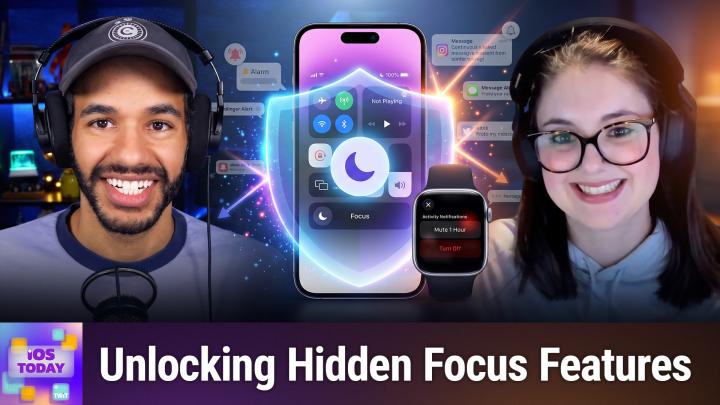
All right, here's a quick gut check for you. How many notifications did you get before you finished your morning coffee or your morning tea? My guess is probably a lot, and that is why we're gonna help you de-distract your devices. Stay tuned.
TWiT.tv [00:00:18]:
Podcasts you love. From people you trust.
Mikah Sargent [00:00:23]:
This is TWiT. This is iOS Today, episode 826 with Rosemary Orchard and me, Micah Sargent, recorded Tuesday, October 20th, 2026 for Thursday, October 29th, 2026. De-distract your devices. Hello and welcome to iOS Today. This is the show where we talk all things iOS, iPadOS, watchOS, and HomeView software. I am one of your hosts, Micah Sargent.
Rosemary Orchard [00:00:56]:
And my name is Rosemary Orchard. And while I might not have a HomeView, I do think that maybe your device is disturbing you a little too much, which could be spooky, but we're going to show you how to make it not so spooky.
Mikah Sargent [00:01:09]:
Very good, because it's almost, uh, Halloween as this episode publishes, uh, but a few days away. Maybe I should have been wearing some sort of Halloween costume. Oh well, too late. Um, in any case, this, yes, is the, uh, opportunity for us to talk about distractions and all of the things that you can do to Manage distractions on your devices. There are lots of tools, lots of settings, and luckily there's one that keeps things pretty simple, and that is Do Not Disturb. Even before focus modes existed on iOS, on iPadOS, there was Do Not Disturb, and you can access it very simply by Accessing Control Center, however it's done on your device. On a modern iPhone, you swipe down from the right side, right top corner of the screen, and Control Center is there, and you can just tap Do Not Disturb in the Focus section. And it, of course, helps you to cut down on distractions.
Mikah Sargent [00:02:17]:
Apple describes Do Not Disturb as a way to limit the number of distractions Actions that appear so that notifications aren't popping in. It silences calls, alerts, and notifications. And of course, when it's on, you get a little moon crescent in your— in the status bar and on your lock screen to let you know that you have Do Not Disturb turned on. It can work by turning on automatically. But it does not require automatic, you know, scheduling. And I think that it is, again, one of the simplest ways to see what it's like to have focuses turned on without needing to do any extra thinking, frankly. Yeah, I'm curious, Rosemary, for you, how often do you reach for Do Not Disturb versus custom focuses, which we'll talk about soon?
Rosemary Orchard [00:03:23]:
Honestly, Micah, I don't reach for Do Not Disturb all that much, but one of the things I have made sure to do is under the Apple Watch app, because I do have an Apple Watch, and I don't know about you folks, there's something great but also horrific about being tapped on the wrist to be like, hey, did you see this? Great if it's Micah sent me a message just as we're about to record iOS Today and it's some information I need to know. Not so great if it's Reddit going, hey, here are the top 10 posts from today that you might not have seen. Goodbye Reddit, I don't want notifications from you anyway. But I definitely don't want notifications coming through on my Apple Watch when I have set my phone into silent mode. So under Apple Watch, General, Focus, I have set up Mirror My iPhone. And there are use cases where maybe you actually want your watch to work differently to your iPhone in some cases, but the vast majority of the time, folks, I'd suggest that actually the best thing to do is to have your iPhone mirror your Apple watch because this is something my dad was kept asking me the other day. He was like, oh, I don't want my phone to ring or anything for the next couple of hours. And so his instinct was, uh, much like Kevin once told us after he switched from Android to iPhone, I'm just gonna turn the volume all the way down.
Rosemary Orchard [00:04:35]:
Well, that's not how that works. And the next time my dad would have gone to play music, it would have just been very, very quiet or not played music at all. So I just showed him tap on the moon, And he said, okay, now how do I do that on my Apple Watch? And I was able to say with confidence, because I set this up for my parents a long time ago and double-check frequently to make sure it's not been turned off, it will do it automatically because your phone does it and then your Apple Watch does it. And so that worked out really well for exactly what we needed it for, which was just a couple of hours without any notifications. So yeah, I don't use it that frequently. I would say less than once a month. But one of the things I do do when I set this up is I tend to tap on the 3 dots next to it. So once I've got it turned on, then I actually have my podcasting focus mode turned on.
Rosemary Orchard [00:05:26]:
I don't really want to turn that off because that does a couple of other things which are really good at helping me not get distracted. But what you can do is you can tap on the 3 dots and you can say, hey, for an hour, until tomorrow morning, or until I leave this location. Now, until tomorrow morning is dynamic and it's going to change depending on what time of day it is for you. So for me here, it is about 20 past 6. in the evening, which is why my phone and everything are in dark mode. Everything's chilled out, ready to relax and keep doing whatever. But I might want to just say, hey, can the world just go away until tomorrow, please? First thing in the morning though, it'll say until lunchtime or until this evening or until this afternoon, things like that. So it's nice that it's dynamic.
Rosemary Orchard [00:06:09]:
It is a little bit of a black box as to exactly how that works and what time things switch over, at least to my mind. But it's useful to know that you can do this with any focus mode, including Do Not Disturb. So I highly recommend checking that out if you are there going, ah, but I need to remember to turn this off again. Set it up to turn off automatically when you turn it on in the first place.
Mikah Sargent [00:06:30]:
Now, when it comes to kind of managing your attention, again, I think that Apple has Obviously improved this a lot. One of my favorite things is is the driving focus, so that that can automatically activate, and it has been very beneficial as a tool to limit distractions. Because for me, even though I will not and I do not use my phone while driving, I do still if if in the before times, if I would get a notification, I'd spend the rest of the drive thinking about it, thinking about it, thinking about it. And so not even having to have that be a Concern while I'm driving is very, very handy. And I think that that's where you know that was kind of my it was the motivation for me to lean in to focus modes and to you know really give them a go. And Apple does a good job, I think too, of setting you up with basic focus modes. And then I know they're not called focus modes anymore. Now they just call them focus.
Mikah Sargent [00:07:36]:
But in my mind, still focus modes. And Apple gives you those basic options that you can build upon so that you have a work focus, so that you have a sleep focus and a personal focus. And the addition of things like focus filters where apps are able to display or, you know, refrain from displaying certain content over time— mwah, chef's kiss. Mm-hmm. I wanted to ask you, Rosemary, as well, When it comes to setting up Focuses on your device, do you have your Focuses set to share across devices and also share with others? And could you tell our listeners a little bit about what each of those features actually do?
Rosemary Orchard [00:08:28]:
Yeah, so share across devices is much like the mirroring from your watch or your phone to your watch and vice versa. So, I do have all of my focus modes share across my devices. So when my phone goes into podcasting mode, my iPad goes into podcasting mode, and my Mac, both of them, my Mac Studio and my MacBook Pro, go into podcasting mode. And this is great because it means that I can turn on podcasting mode as part of my automation to set things up on my Mac, and it just syncs over to my iPhone. That's it. Simple. Done. And it does just make my life a lot easier because I have things turn on focus modes automatically.
Rosemary Orchard [00:09:09]:
And this means that, for example, I go to work and I get to an office. I don't go there very often, admittedly. And my phone goes, oh, hey, she's physically at work. I'm going to turn on the focus mode. Similarly, if I'm not at work when my focus mode for work turns on and I'm not on Wi-Fi, it goes, ah, she's not working today. I'm going to turn that off. Obviously, I can turn it back on manually. That's not an issue, but it is useful to know.
Rosemary Orchard [00:09:34]:
that I can, I can do that. So I do like having things sync across devices. The iPad, I would say, is less important because I don't really customize it all that much to what is happening, but it is very useful on the Mac as well because I can limit my notifications coming through. So for example, while I'm podcasting, I'm not getting a lot of my notifications at all because I don't want things like messages on WhatsApp popping up unless it's Micah that messages me, in which case I have him allowed on my iPad. Same. on my automatic filter because that way if you message me during a show, I know, Micah, it's really critical. It's probably a picture of Missy or Henry because, you know, that, that would be critical information to share with me during a show. But it could also just be something about, oh hey, I threw an idea into Shortcuts Corner that you might want to have a look at, which, you know, always good to know.
Rosemary Orchard [00:10:24]:
So yeah, I do have them sync across devices. It's useful from that perspective. However, I do not have the status of my focus mode being shared. Now there's a couple of reasons for this. Most of the time it's because the people who I'm going to be communicating with while I'm in a focus mode, unfortunately mostly communicating via WhatsApp instead of Messages. Therefore this doesn't really do anything anyway. But also, I— the people who would be messaging me who might need to get through I have explicitly put on a list where they can get through to me, so they will be able to call me. Uh, because let's face it, if something happens in the family, my mum or my dad is gonna phone me and say, hey, we need to talk right now.
Rosemary Orchard [00:11:12]:
They're not gonna be sending me messages and being like, hey, oh, she's got a thing and it's happening right now, I'm gonna tap the button to notify her anyway. Yeah, I, I just have the important people let through explicitly instead of giving everybody else the option to notify me anyway, which can kind of defeats the point, in my opinion, for some things. Mm-hmm. There are certain use cases where, for example, you might have a workout focus mode where you're at the gym and you kind of just want things dimmed down and so on. But I don't know, maybe your friend is having a crisis shopping for an outfit for a wedding and they go, no, you know what? I need to talk to Micah right now about this dress choice. Do I go navy? Do I go purple? And I need to interrupt Micah's workout to ask him for this because he will just message me back and tell me that I'm being silly and they both look fabulous on me and I should pick whichever one looks great on the day or feels great on the day. Because yeah, folks, pro tip, if, if you're trying to choose between outfits, choose the one that makes you feel good rather than the one that you think looks the best, because the one that makes you feel good will make you look even better. But yes, it is, it is nice to have that option.
Rosemary Orchard [00:12:18]:
The only time I think maybe I should consider re-enabling that is during strip mall driving, because sometimes I just kind of want the world to go away while I'm driving. But it would be nice for people to be able to get through to me anyway. But then I'm back to the problem of a lot of the people getting through to me are on WhatsApp. So yeah, I need WhatsApp to integrate with focus modes basically, at least at the moment, or to move more of my friends over to iOS so that I can use Messages more. What about you, Micah? Do you sync your focus modes? Do you have apps have access to your focus mode?
Mikah Sargent [00:12:50]:
Um, yes and yes and yes. So Some of my devices sync focus modes. They don't all sync focus modes. And that's because, especially on my iPads, which yes, it is a plural. It's a situation where the 2 iPads that I have are primarily devices that are for me knowing what's going on on iPadOS. I just don't use them that often. And so what happens is I They die, and then I plug them in to charge, and then when I turn them on, a trillion notifications all come pouring in and it slows down the system. So by having Do Not Disturb turned on, it doesn't slow down the system as much.
Mikah Sargent [00:13:37]:
They, they populate in the background and it doesn't use as much UI performance in order to display those notifications. But I don't want that Do Not Disturb to then link across all of my devices because on the other places I don't want Do Not Disturb turned on. So I, yeah, I'm, I'm choosy about where those, those focus modes are kind of synced across the device or shared across devices. And as far as, uh, sharing in, especially in Messages, I like to have that feature turned on so that someone can tell that I'm in sleep focus mode. Uh, when someone would, you know, whether it's sleep focus mode or it's something else, being able to have that be a— what be, you know, present for the other person to know that my notifications are silenced or whatever is handy. I don't have read receipts or read receipts, depending on how you choose to pronounce it, whatever your religion, turned on. But I definitely do like to share my current focus with other people. My next question for you, Rose, what, where have you kind of branched out? I'm looking, let me actually look currently because I might be, I don't want to lie.
Mikah Sargent [00:14:56]:
I'm pretty sure I have trimmed my focus back down to, yes, I used to have 2 or 3 extra focus modes and, or focuses, and I ended up getting rid of them. And just reduced it back to the Apple defaults because I just didn't really make use of those. I am good with having a work focus where you, Rose, are the only person that is set to break through and some certain apps are able to break through. I'm good with having my sleep focus where my partner is the only one who can break through and only our security, like home security apps, are able to break through. Driving mode obviously allows my partner to break through, and that and then my favorites will get an auto reply saying that I'm driving, and I'll you know see your message when I get to where I'm going. And which one am I forgetting? Reduce interruptions is also set with just my partner being able to break through, and of course do not disturb also set with my partner being able to break through. But everybody else is unable to do so. Do you? I have a bunch of, uh, and I know you've, you've shared these before, but kind of, um, when do you think it's worth, that's what I'll ask, creating a new focus instead of making use of kind of one of the default focuses and making that your main means of turning on a focus mode?
Rosemary Orchard [00:16:39]:
Well, the one focus mode that I have that we haven't covered here, Mike, is my holiday focus mode. And I should clarify that this means vacation focus mode rather than specific state holidays or US holidays or whatever. So this for me is activated when there is something in my calendar that says, hey, you're on holiday, and it activates between 9:00 AM and about 11:00 AM, give or take. It doesn't activate all that much, and its entire purpose is to block Microsoft Teams. So basically what happens is my work focus mode turns on automatically at 9:00 AM, and then it goes, oh, hey, actually, shoot, you're on holiday. You're not working today. I'm going to turn on your holiday focus mode instead. So it turns off my work focus mode, turns on my— and I do explicitly, just to be clear, turn off my work focus mode and I turn on my holiday focus mode and I set my holiday focus mode to turn off in 2 hours.
Rosemary Orchard [00:17:38]:
The reason for this is basically I can't tell Microsoft Teams that it is only allowed to notify me when I'm in my work focus mode. That's not an option. Don't ask me why. I think Apple need to review this. Maybe other people don't use focus modes at all. I don't know. Who knows? Send us feedback if you use focus modes or if you don't use focus modes and tell us why you do or you don't. I would love to hear from all of our listeners.
Rosemary Orchard [00:18:03]:
It doesn't matter even if it's the most basic feedback. I'd love to— I still want to hear it, folks. But the whole purpose for this is basically I don't want Microsoft Teams to be going, hey, Somebody posted a meme in chat. Hey, this meeting started. Hey, this meeting's ended. The vast majority of my work meetings are between 9:00 AM and 11:00 AM. That's it. That's all it does.
Rosemary Orchard [00:18:24]:
It just disables Microsoft Teams. But you know what? It's worth disabling it for those 2 hours because otherwise I get a bunch of notifications that I would otherwise, if I am working, I'd want to know that this meeting has started if I'm not at my PC because I need to know that Oh shoot, yeah, I thought I had another couple of minutes to grab a drink. I don't. I need to be back upstairs right now, and I can just run back upstairs and I'll be there on time because upstairs is like 10 seconds away from downstairs in this house if I'm going slowly. So I, I will be able to make it to the meeting. But when I'm not working, I, I don't care about Microsoft Teams. I'm sorry. I'm sure my day job would love to hear that I spend all of my time dreaming about Microsoft Teams meetings, but I just don't.
Rosemary Orchard [00:19:09]:
So yeah, I have an extra focus mode that gets oh, you're on vacation, your calendar says that you're taking a break from work, therefore I'm going to turn on the focus mode that turns work off for you. Because yeah, despite my best efforts to tell Microsoft Teams that I am out of office for a period of time and not to disturb me, it still sends me notifications when meetings start. And yeah, I don't appreciate that. So I have found my own solution to the problem.
Mikah Sargent [00:19:38]:
Uh, that is a delight. And You know, I would love to hear folks about your purpose-built focus modes that you've set up that you've, you know, have made a difference for you. When it comes to the newer features, Apple Intelligence being able to kind of summarize and stack notifications, being able to reduce interruptions so that it only lets through things that it thinks matters, that it thinks matter, is is something else that you can enable on devices that support Apple Intelligence. It's something that I don't trust personally, so I don't use because there could be a notification that I do need that hasn't, you know, or doesn't come through whenever I have that turned on. So yeah, I think that's a matter if you are thinking about using Reduce Interruptions or having the Intelligent Breakthrough turned on for a specific focus modes, then, you know, give it a trial of a week or so and see what got blocked, what got through before you decide to kind of, you know, keep that on and keep using it. I think this is a good way to kind of check it out. Now, there's another place that you can get notifications and that place can have the same notifications or different notifications from your iPhone. Okay.
Mikah Sargent [00:21:06]:
And I have, I started out where my Apple Watch was a direct tie and mirror to my iPhone, meaning that all the notifications that I would get on my iPhone would also appear on my Apple Watch. And so I'd get a little tap on my wrist whenever something would come through. Then I realized that there were some apps that I just simply did not need the notifications for on my wrist and that I could come back to them later on my iPhone and interact with them there. So bear in mind that in your settings for your Apple Watch, there is an option to customize your notifications per app on the watch. And you can choose to either mirror what the iPhone shows or customize it, uh, so that it is not a direct mirror. And that Is something that I think people should absolutely take advantage of and decide, you know, yes, this deserves my immediate attention, or no, I don't think this deserves my immediate attention. And of course, be aware that your watch can serve as the sort of notification prime location so that if you are wearing your Apple Watch and you do have it set to mirror. Your phone doesn't have to light up and show that notification there.
Mikah Sargent [00:22:30]:
It can just be on your wrist. And then later on in Notification Center on your phone, you'd be able to see it. But it doesn't have to be popping up in both places and actually doing the full notification. And I think that's a handy thing that can result in saved battery on your phone, for example. Mm-hmm. Or in the case of too many notifications on your wrist, turn some of those off and then it saves battery. on your wrist. Uh, do you keep everything the same between the 2 rows, or do you have, uh, kind of separate settings for each?
Rosemary Orchard [00:23:00]:
I have a 3-tier notification system, Micah. So 3, 3 tiers. So the first one is things that can tell me about them on my wrist. So these are really important things like messages from you, messages from my mum, uh, various other people like my partner. Uh, if the dog had a phone, then it would just send me snacks, treats, ball. It would, it would basically just be ball the entire time. That was, that would be all he would send me. Uh, he, he's now doing Gremlin ears at me.
Rosemary Orchard [00:23:30]:
This is not good. I shouldn't have said the word so many times. I'm sorry, folks. If I get—
Mikah Sargent [00:23:34]:
You said the B-word!
Rosemary Orchard [00:23:35]:
Yeah, if I get body slammed by a Border Collie in the next couple of minutes, it's because I said the spherical object that he loves. Uh, but yeah, so I have a triage list essentially. So super important things like security notifications, things like that. They go to my Apple Watch. Then I've got things that can land and light up the, uh, the home screen of my iPhone. So these are the things that appear in, like, straight onto my lock screen. And then my third tier are things that I probably want to know about, but it's not something that I want interrupting my day, thank you very much. These go straight to Notification Center rather than appearing on my lock screen.
Rosemary Orchard [00:24:14]:
And that's things like email and things like that. Things that it's nice to be able to see that I've received an email, but I don't need to be told about it in a way that interrupts what I'm doing. And this is something that is well worth remembering. And I am just gonna see if I've— I don't have anything on my phone unfortunately that I could really show folks because there, all of the notifications that have appeared on my phone since we started recording are actually important ones. Like, hey, you spent money on Amazon. Like, yes, I know I did. Thank you for actually finally shipping that order, Amazon. But yeah, I don't really want to show folks my banking notifications.
Rosemary Orchard [00:24:56]:
But again, things like this, you know, you can decide, do you want things? So what I did, I had to make myself consciously think about this for about a week. And a week is about how long it took where when I got a notification, If it came through on my wrist to start with, it was a, okay, was this worth somebody basically tapping me on the shoulder and going, hey, look at this? Because that is essentially what it is. It's quite an aggressive and invasive notification method. Do I want that? Yes or no? And if I don't want that, then I turned it off on my watch so that it wouldn't come through on my watch, but it would come through on my phone. And then I went, hey, does this actually need to actively like pop up and go, hi? Or is this more of a, hey, when you get around to it, you might want to know about this. And it turns out a lot of my notifications were, hey, when you get around to it, you might want to hear about this. Or straight up, I don't care about this, thank you very much, Reddit, I didn't want your notifications anyway. Uh, pro tip, by the way, folks, if you're still getting notifications from Reddit and you think you've turned them off, make sure you're not signed into a second account on Reddit that has got different notification settings turned on.
Rosemary Orchard [00:26:03]:
That one took me a really long time because I basically only want notifications if somebody has sent me a direct message, which very few people are able to do. So yeah, uh, there are, you know, there, there are ways to triage this, but I spent about a week. And you just swipe from the right side to the left side on a notification on your lock screen or notification center, and then you get options to change it. So you just sort of drag it in towards the middle, and then you get some options. And this is really useful for going, hey, no, I don't want this appearing on my lock screen, I just want it in notification center. Hey, I want to turn off notifications. I want to turn this off for an hour. That's something that can be really useful.
Rosemary Orchard [00:26:42]:
So say for example, there's a group chat that you're in and you are just trying to get on with whatever it is that you're getting on with things, and 6 people are busy posting about the latest what color is that dress. You can just mute it for an hour or a couple of hours and then come back to that one application or that one message thread or whatever it is. Hopefully, hopefully the application messages is granular enough that you can just say this particular message thread. I know Microsoft Teams and Slack both support that, which is a pleasant surprise, but they are messaging platforms. But yeah, I suggest folks having a sit down. Well, not even a sit down, having a swipe around your notifications and just instead of just clearing things or leaving them to stack up, maybe turn some of them off or turn them down in importance so that they're not grabbing your attention. Because these things are all set out to distract us and suck us in. And sometimes they don't need to do that.
Mikah Sargent [00:27:37]:
Yep. Uh, they don't have to, you don't have to be pulled into every notification. And I think that's, uh, that's part of the point that we're, we're trying to make here, how to, how to manage this. Um, there are some other things that you can do with Focus. Of course, you can set this up on your Mac. Um, and Screen Time is a great tool for managing your eyes across devices as well. Kind of tying those two together, right? You have Focus that helps you to limit notifications, and then you have Screen Time, which helps to show you how much you're using the different devices and how much of your time is taken up by different apps or categories. That can be very handy.
Mikah Sargent [00:28:23]:
Having more data to just be aware of how you use your device can often result in you changing habits or improving habits or making adjustments to your focuses as well. That is one of the ways that I was able to see that I didn't really need a bunch of extra focus options was by using the built-in screen time and seeing what ended up grabbing my attention and when and what apps were kind of vying for my attention the most. If there are, again, special focuses that you've set up over time that you think are great and you wanna brag about 'em, you can email us iosToday@twit.tv to get in touch. Moving along to the news. We, of course, have Engadget. Some of the changes in Focus Mode is that Focus Mode can be used to help simplify your automations. So being able to set up those natural language commands include Focus Mode status. So for example, the Engadget writer said, I have a custom Focus Mode called Christine where I silence notifications from Facebook, Instagram, phone, and Messenger, but still permit notifications from Slack and my Ring video doorbell.
Mikah Sargent [00:29:42]:
You can also choose specific people to allow notifications from, and being able to do that using the natural language improvements with Siri Shortcuts was very handy as well. So it's just a simplified process where shortcut actions can check your phone and use your focus mode that's currently active, so that way it will set up different settings depending on what focus mode you have set. Very handy feature. And then the other thing that I wanted to mention, this was brought up by 9to5Mac's Zach Hall. iOS 27 breaks 15 years of muscle memory on iPhone and iPad because yes, Siri AI is now the sort of the, the, the front-runner, as it were, for the gesture that you use to swipe along the top edge of your phone. Before, that would open up Notification Center to swipe down to get to it. Now, most of that middle area is the Siri AI summoner. You have to swipe along the top left corner to get Notifications, along the top right corner to get Control Center.
Mikah Sargent [00:31:04]:
The middle is now reserved for talking with Siri AI, and yes, it has taken me a little bit to get used to, and I sometimes still end up swiping and going, "No, I didn't want Siri AI. I wanted this instead." So that is something to just bear in mind. All right, let's head to the end of the show. It's time for our app caps. These are the apps or gadgets we're using now, or have been using for some time, that we think are great and want to share with all of you. Rosemary, tell us about your.
Rosemary Orchard [00:31:32]:
So my AppCap pick, Micah, is one that's been around for a while, and I feel like people keep forgetting that Apple made an Invites app where you can create a party invitation. And I feel like this is especially relevant because people might be having Halloween-themed parties, because any excuse for a costume is a good excuse to have a party. Or at least, you know, even if you only dress up in your mind and have a party that's just you and your dog. I'm not gonna lie, I'm not It still counts. Not that that's what I'm doing on Sunday. So what you can now do in the Invites app that you couldn't do before, because the Invites app, it's, it's pretty simple, folks. You create an event, you can customize all of the features here. I'm not going to fill everything out because it would take quite a while.
Rosemary Orchard [00:32:15]:
You can create a shared album, which I really love, so that everyone could upload pictures to the same place. You can add a link to like a gift registry, a travel itinerary, a packing list, documents You can create shared playlists so people can have a party playlist. That would be pretty awesome. And you can also add tiles, which essentially are visual representations of the things that I just mentioned. But there are 2 particular changes that are worth noting with the Invites app. So you can now more easily manually add a guest to an event, and then you can mark their RSVP status. So your grandma who maybe doesn't have an iPhone— mine does, which is slightly weird and problematic at times, but generally good— could RSVP. But maybe your grandma isn't an iPhone user and doesn't have a smartphone.
Rosemary Orchard [00:33:04]:
So she's coming to the party, she's coming to Thanksgiving, but she doesn't have a way to RSVP because, you know, she, she's not a computer person. And, you know, if she's your grandma, then maybe, maybe you can forgive that versus, you know, Bob at work who says he's not a computer person. But either way, you can manually mark people as Coming or not coming, whatever it is you like, even when they don't say so inside the app. And your invite widget— so that is the widget that you can add to your home screen or your lock screen, uh, well, in this case the home screen— now supports extra large size. So you can add a countdown on your home screen. And it also has bug fixes and performance improvements, like every single app out there in the App Store. But at least they put more in the update notes this time. So yeah, that's invites.
Rosemary Orchard [00:33:50]:
I would recommend giving it a try. It's free. Give it a little— give it a little play for your next event, especially if you're just inviting iPhone and iPad users to the party. Then you can really perhaps go wild with it. I particularly love the idea of the share playlist and the shared album because that allows you to capture all of the great moments from that night and set everyone up with a fabulous playlist that isn't just the same 17 songs
Mikah Sargent [00:34:16]:
Uh, wonderful. On my end, I don't own this, but I wanted to mention it because I felt like it was an appropriate mention for this episode where we're talking about managing your attention. Uh, it is a device called Brick. You may have heard about it. It's a small magnetic puck that will block apps that you choose to block until you tap your phone against it. Again, so tapping it once will block those apps from being able to be launched and used, and then tapping it again will unblock them. And so it will, you know, work to help you manage different apps that you may otherwise be drawn to once to use. It's got a 4.4-star rating on Amazon, $59 if you order it from Brick.
Mikah Sargent [00:35:07]:
Amazon's price is a little bit more expensive for some reason right now. But it, uh, it's— I think the thing about it that sets it apart from the built-in Screen Time option is that with Screen Time, you can very easily tap Ignore on the Screen Time block. This does not give you an Ignore Limit option. So it's a stronger Screen Time block. The only thing that I saw in terms of like a regular complaint was that there are times where when you tap it against the device to unlock your apps again, some folks were unable on the first tap to get it to work. So you sometimes have to tap it twice. It works on iOS 18 or later. There's no subscription service, which is great.
Mikah Sargent [00:35:59]:
And it is also something to be aware of is that it has 5 emergency unlocks built in in case you accidentally lose access to the Brick. So if you are worried like, oh, well, you know, that's the thing about screen time is that it lets me ignore in case I needed to get to one of these apps in an emergency. There are still ways to get into the apps if you absolutely need to, but it's a more involved process. And so you're less likely to make use of one of those is the idea. So that is Brick, the smartphone access blocker that's available on Amazon. and directly from Brick itself. Alrighty folks, that brings us to the end of this episode of iOS Today. I remind you once more that you can reach out to us by emailing us iosToday@twit.tv.
Mikah Sargent [00:36:55]:
That's how you get in touch. Rosemary Orchard, if people would like to follow you online and check out all the great work you're doing, where should they go to do so?
Rosemary Orchard [00:37:02]:
The best place to go is rosemaryorchard.com, which has got links to apps, books, and podcasts that I am or have been involved with. And of course, it's got links to my social media as well where you can find me. Except for Discord, where you can find me hanging out in the live chat channel during the show, where some people are having some chats about the best way to watch the show live. And of course, you can also find me in the iOS Today forum after the show. Micah, where can folks find you?
Mikah Sargent [00:37:26]:
If you're looking to find me online, I'm @micahsargent on many a social media network, where you can head to chihuahua.coffee. That's chihuahua.coffee, where I've got links to the places I'm most active on. Thank you so much for being here with us this week. It's always a pleasure to get to bring you this show. We'll be back again next week with another episode of iOS Today. Bye-bye.